
League of Legends Best Settings TL;DR
- Launcher: Low Spec Mode on, kill interactive effects, close client in-game.
- In-game: Borderless, Very Low preset (shadows off), AA on, VSync off, FPS cap to monitor Hz.
- Windows tweaks: Game Mode on, High Perf GPU/power plan, end Chrome/Discord tasks.
- Pro peek: Faker's high-graphics preset, low shadows for fewer distractions, 240 FPS, borderless.
- Game reqs: i3 + 2GB RAM min runs low settings smooth.
Still worried that FPS boost won’t ever save you from weak teammates in ranked queue? Yeah, I know what you mean. On Playhub, you can buy LoL accounts with desired ranks. Start playing with stronger pals - try safe service & affordable prices from verified sellers.
Best League of Legends Settings 2026 (In-Game + Launcher)
Hey, let's dial in those best LoL settings 2026 together. You’ll forget about mid-fight fps drops. We’re going to kill lags while keeping the picture juicy, yet neat.
People often search for ready-to-use configs for desired games. Sadly, there is no ultimate LoL fps config. You’ll have to tweak all settings manually in-game and in the launcher. Chill, mate - I got you. Every important tweak is mentioned below. This guide is made by a gamer, for gamers.
Launcher Tweaks
First up, the launcher: the first LoL settings for FPS are hidden here. Tiny changes kill background bloat before you even hit the queue. Idk why Riot Games decided to have their launcher separated and split the setting list, but we have what we have.
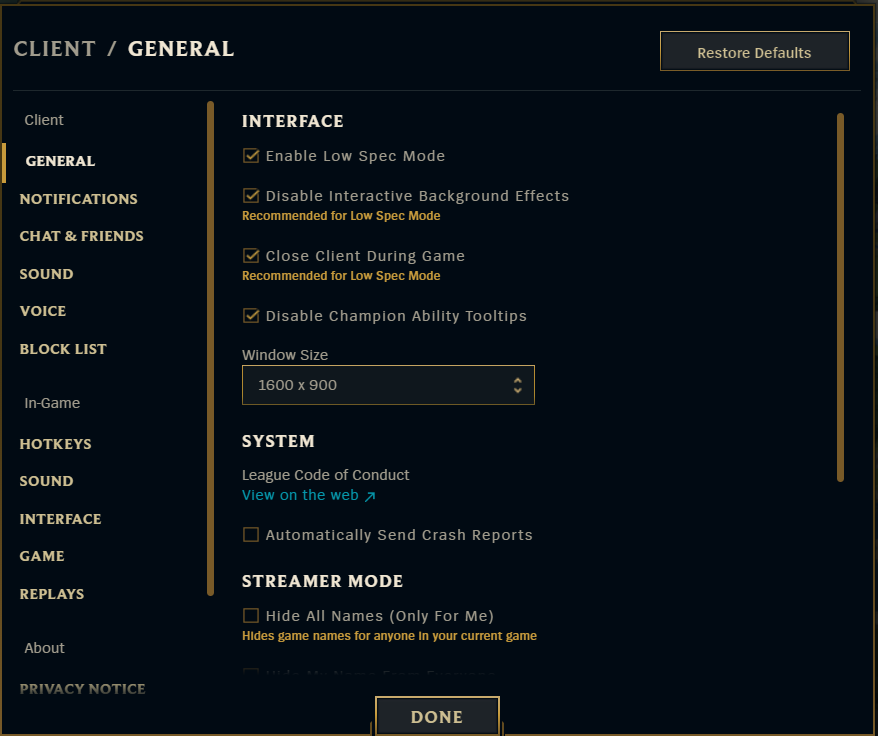
So, what do we do with these settings? Let’s cover it all step by step.
First, enable Low Spec Mode if your PC struggles. It allows you to get some bonus FPS by killing fancy animations and effects. Next, toggle the “Disable Interactive Background Effects” button. Those flashy client visuals eat CPU cycles for zero gain, messing with your launcher surfing experience. Then you turn on the “Close Client During Game” thingy. This is the biggest FPS tweak here, as it frees 10-20% of resources that were otherwise used to maintain the launcher during gameplay. Why would we need this?
Other LoL video settings sections hide some other useful stuff, like additional in-game mouse sensitivity tweaks in the “Game” section. These won’t make the game run smoother, but I recommend you poke around and tune them to your liking for a more pleasant gaming experience.
In-Game Settings
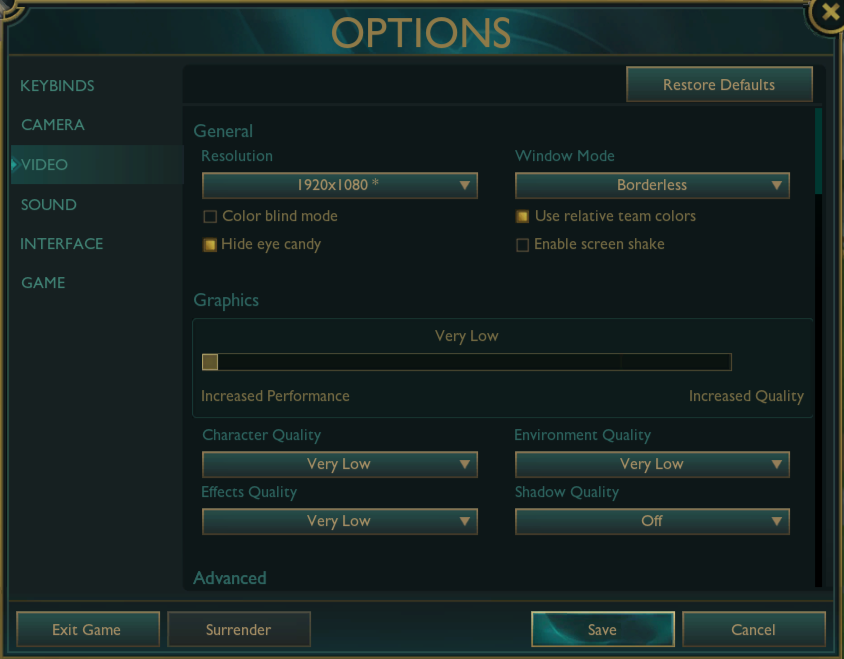
We are here to increase fps in LoL, and this page is the most important part for that. Settings here have the highest impact on FPS. In the “Video” section, change these settings:
- Resolution should match your monitor's native res for comfortable gameplay. In a chase for every single frame, one may lower the resolution for minor gains. It’s not recommended to set it lower than 1024x768, as the game becomes barely playable in that state.
- Window Mode: Always choose borderless. Combine it with the windowed optimization feature (Windows Settings - System - Display - Graphics - Toggle on "Optimizations for windowed games") and enjoy a smooth experience.
- Hide Eye Candy: flip this on. Tiny FPS bump plus zero distractions during games.
- Graphics Preset: Very Low. That’s the boss among the best LoL graphic settings. It Auto-sets Character Quality (Very Low), Effects (Low), Environment (Very Low), and Shadows (Off). All these may be changed manually and separately.
- Framerate Cap should match your monitor limit. May also be uncapped on beast PCs.
- Anti-Aliasing. Costs you very few fps, but jaggies hurt more than 2 frames do. Highly recommended to keep this enabled.
- Vertical Sync. Disable that at all costs. It makes your game run smoother only if your in-game FPS is higher than your monitor’s limit.
Well, the best LoL settings for FPS increase are all set now. Just like in the Launcher, there are many other settings that help you tailor your gaming experience, but not boost FPS.
League of Legends Pro Settings
Ever wondered why pros choose this or that setting? Well, that’s because they don’t have to chase for best LoL video settings. They are individuals with their own preferences…and extremely powerful PCs. This part is not about “helping folks get more frames”. Let me show you the settings of the greatest LoL player ever - Faker. He won 5 Worlds titles, 10 LCK championships, and 2 MSIs as T1's legendary mid laner.
Here are Faker’s current LoL pro video settings:
-
Resolution: 1920×1080.
-
Aspect ratio: 16:9.
-
Display mode: Borderless.
-
Frame rate cap: 240 FPS.
-
Anti-aliasing: Off.
-
V-Sync: Off.
-
Hide eye candy: On.
-
Screen shake: Off.
-
Character quality: High.
-
Environment quality: High.
-
Effects quality: High.
-
Shadow quality: Low.
-
Color level: 50.
-
Gamma (in-game): 70.
-
Brightness: 70.
-
Contrast: 5.
Personal LoL Preferences (Interface, Accessibility)
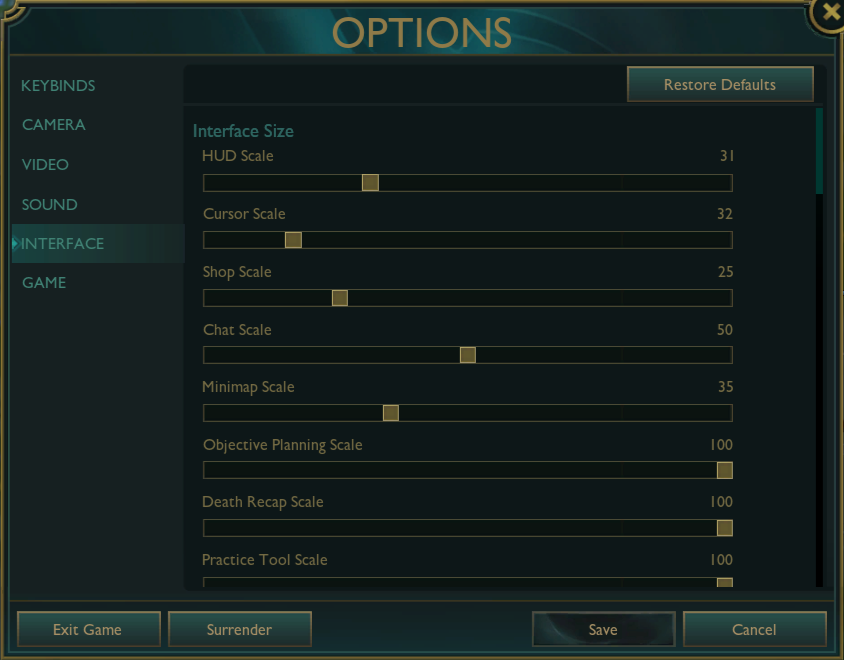
Now we get to the good stuff - customized options that make LoL your own. As for the Best settings to play LoL, they vary based on your playing style and aesthetics. From the image above, you can see what I prefer for the screen sizes. There’s a whole section of accessibility settings, which is great if your body really needs it. The colorblind mode even changes enemy colors for easier spotting in chaotic fights. High Contrast highlights key elements without messing up the visuals. Try flipping these on if they interest you, then go to the Practice Tool to see what they’re all about.
Camera speed is another feature hidden under the hood. I, along with all of my friends, use the Unlocked camera mode. Camera speed lets you get dizzy on purpose - try messing with it to find the best speed for yourself. Mouse speed setting pairs with your DPI for smoother cursor control; I use the mouse speed at a rate of 50 as mine is already set perfectly.
These aren't one-size-fits-all. Some may seem too slow for you, others may feel too extravagant. You should explore interface options, HUD scale, minimap size and many other options. Everybody’s set will be different, so create a unique one too.
How to Boost LoL Performance - Windows Tweaks
There are ways to make LoL run smoother without opening the game itself. Adjust these LoL performance settings with my easy steps to get some extra frames.
Turn On Windows Game Mode
-
Open Windows settings.
-
Click Gaming in the left sidebar.
-
Click Game Mode in the Gaming menu.
-
Enable Game Mode: Toggle it on. Immediately effective but you can restart your PC before playing, to be sure.
Force League to Use High Performance GPU
If you’re on a gaming laptop with both integrated and dedicated video cards, this will force LoL to run on dedicated video card, not the weaker integrated video processor.
-
Right‑click on your desktop and select Display settings (if this option does not show, select “Show more options”).
-
Scroll down and click Graphics settings.
-
Under “Graphics performance preference”, click on Browse.
-
Navigate to your League install folder and add LeagueClient.exe.
-
Once you see your app listed, you can click on it and select "Options."
-
Select High performance, then click Save.
Set Windows Power Plan to High Performance
-
Press Win + R, type “control”, and press Enter to open Control Panel.
-
In “Hardware and Sound” you will select Power Options.
-
Select the "High-performance" power plan. If you can only see "Balanced," you can click "Show Additional Plans" to display "High-performance" as well.
Do these additional steps if your laptop/PC throttles hard:
-
Click Change plan settings next to High performance, then Change advanced power settings.
-
Expand Processor power management and set both Minimum processor state and Maximum processor state to 100%, then click OK.
Kill Chrome and Discord Before Launching
These and various other popular apps can consume valuable PC resources, which is important to note in our case. It makes sense to close them during your gaming session. Each closed program will bring several extra FPS and less random stutter in teamfights.
-
To open the task manager, press Ctrl + Shift + Esc.
-
Click “Processes” at the top.
-
Look for Google Chrome in the list, click it once, and then click End task at the bottom right of the window.
-
Do the same for Discord, other heavy applications, such as those which aren’t required during your game (Spotify with many tabs, other game launchers, etc.).
League of Legends System Requirements 2026
Choosing best graphics settings for LoL would be impossible without knowing the basic requirements. League runs buttery smooth on potato PCs from a decade ago. Anyone with Win10+ gets in. Low settings let you achieve playable FPS even if you're multitasking 50 Edge tabs. That’s the truth, mate. I play on a laptop I bought in 2020 on medium-high settings and have like 100 fps.
Anyway, if you‘ve got a living relic and still want to apply best LoL graphics settings, here is the official League of Legends game requirements table:
|
Spec |
Min Specs |
Rec Specs |
|---|---|---|
|
CPU |
Intel: Core i3-530 AMD: A6-3650 ARM: Not supported |
Intel: Core i5-3300 (mid‑range i5) AMD: Ryzen 3 1200 ARM: Not supported |
|
GPU |
NVIDIA: GeForce 400 Series AMD: Radeon HD 6570 Intel: HD 4600 |
NVIDIA: GeForce GTX 560 AMD: Radeon HD 6950 Intel: UHD 630 |
|
VRAM |
1 GB |
2 GB |
|
Free Storage Space |
32GB HDD |
32GB SSD |
|
OS Versions |
Windows 10 (Build 19041+), Windows 11 |
Windows 11 |
|
RAM |
2 GB |
4 GB (8 GB if you multitask a lot) |
|
Recommended GFX Setting |
Low |
High |
|
Recommended Resolution |
1024x768 |
1920x1080 |
Explore more Playhub League of Legends guides: