
Modern Warfare 4 Best Settings TL;DR
-
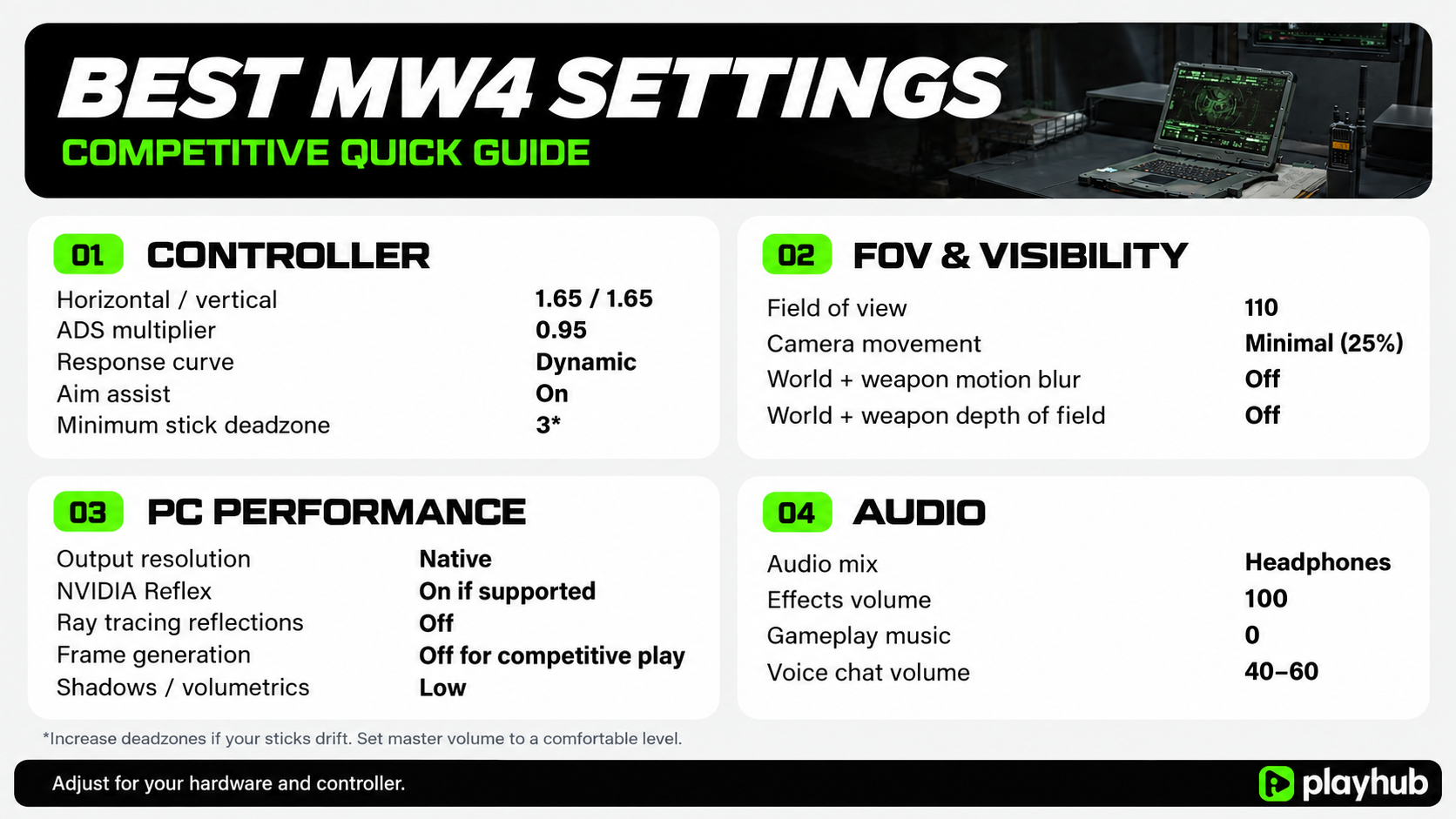
Aim assist should stay enabled. A minimum deadzone of 3 on each stick works as long as your controller doesn’t drift.
-
Use 110 FOV and lower if enemies are hard to aim at.
-
Disable world and weapon motion blur, plus both depth-of-field effects.
-
Ray tracing and frame generation can stay off for competitive PC play; consistent performance with clear visuals is valued a lot more here.
-
1.65 horizontal and vertical sensitivity, a 0.95 ADS multiplier, and the Dynamic are the best controller baseline.
-
Use the Headphones audio mix with music turned down and effects clearly audible.
Have some skins you want that you weren't able to get? You can buy stacked Call of Duty accounts on Playhub with lots of legacy rewards - all delivered safely and quickly.
Best MW4 PC Graphics Settings for High FPS
MW4 has plenty of graphics options you can turn off and get free performance with basically no downsides. Textures can be set a little higher if you have like 16+ GB of VRAM, so dragging every slider to Low is a bit excessive. The setup below keeps the output at your monitor’s native resolution and cuts back on the effects that are unnecessary in Multiplayer:
|
PC Graphics Setting |
Value |
|---|---|
|
Display Mode |
Fullscreen Exclusive, if available |
|
Display Resolution |
Monitor’s native resolution |
|
Screen Refresh Rate |
Highest supported refresh rate |
|
Dynamic Resolution |
Off initially |
|
Upscaling |
Quality mode on a supported DLSS, FSR, or XeSS option |
|
Render Resolution without upscaling |
100% initially |
|
Frame Generation |
Off for competitive play |
|
NVIDIA Reflex Low Latency |
On on supported hardware |
|
Ray Tracing Reflections |
Off |
|
Texture Resolution |
Normal; High with spare VRAM |
|
Detail Quality |
Low |
|
Particle Resolution |
Low |
|
Shading Quality |
Low |
|
Shadow Quality |
Low initially |
|
Shadow Filtering Quality |
Low |
|
Screen Space Reflections |
Off |
|
Occlusion and Screen Space Lighting |
Off |
|
Volumetric Quality |
Low |
|
Deferred Physics Quality |
Off |
|
Gameplay V-Sync |
Off initially; adjust with your VRR configuration |
Upscaling is better to avoid - a lower internal resolution might get you more frames, but it makes the overall game image messy and blurry in the worst moments possible. But if you’re struggling with getting decent frames, Quality is the best option, and Balanced and Performance are reserved for when you really need the extra FPS. Sharpening can make the image look cleaner, but only up to a point. Too much of it adds noisy edges around, which can get tiring to look at in motion.
Should you use frame generation in MW4?
For competitive Multiplayer, frame generation should be turned off since it could result in input lag. NVIDIA’s MW4 announcement covers DLSS 4.5, the frame-generation features available on different GPUs, and Reflex support, and Reflex is definitely worth using if you have the option to. With frame gen, the question is whether you like how the game feels while aiming and moving, and the FPS counter alone won’t answer that.
Best MW4 Settings for Low-End and High-End PCs
An older PC will need to make most of the cuts in the graphics table. The real difference shows up in busy fights, where smoke, explosions, and several players are all on screen. A frame rate that looks great in an empty area can straight up fall apart in busy fighting scenarios we usually find ourselves in Multiplayer. The real goal of tweaking settings on the older machine is to find a target framerate sweet spot that stays stable in all situations:
|
PC Priority |
Settings to Change |
|---|---|
|
Struggling to maintain 60 FPS |
Reduce shadows, volumetrics, particles, and reflections; compare Quality and Balanced upscaling |
|
Enough performance for 100–144 FPS |
Keep the competitive profile, then improve textures and image reconstruction |
|
Targeting 165–240 FPS |
Check if your CPU is hitting its limit before reducing resolution further |
|
Campaign image quality |
Increase detail and lighting gradually; test ray tracing last |
|
Stutters near the VRAM limit |
Lower texture resolution and close GPU-heavy background applications |
Using the benchmark helps to explain why lowering settings sometimes does very little. When the CPU is holding you back, dropping from 1440p to 1080p might barely change the frame rate. When the GPU is the problem, reducing resolution and some of the heavier visual effects becomes a way to get better performance.
Best Modern Warfare 4 Controller Settings
Controller sensitivity is easy to overdo. You still have to have reliable tracking, and that gets harder when every small stick movement pulls your crosshair past your enemy. The basic recommendation is 1.65 on both axes with a 0.95 ADS multiplier, which slows things down slightly once you aim.
|
Controller setting |
Value |
|---|---|
|
Button Layout |
Tactical on a standard controller |
|
Stick Layout |
Default |
|
Horizontal Stick Sensitivity |
1.65 |
|
Vertical Stick Sensitivity |
1.65 |
|
ADS Sensitivity Multiplier |
0.95 |
|
Aim Response Curve Type |
Dynamic |
|
ADS Sensitivity Transition Timing |
Instant |
|
Target Aim Assist |
On |
|
Custom Sensitivity Per Zoom |
Off initially |
|
Left Stick Min |
3 |
|
Left Stick Max |
65 |
|
Right Stick Min |
3 |
|
Right Stick Max |
99 |
|
Trigger Deadzones |
0–5, depending on unwanted inputs |
|
Controller Vibration |
Off |
|
Motion Sensor Function Behavior |
Off unless you use gyro aiming |
These aiming values are close to SCUF’s MW4 controller recommendations, which is just a great preset to use, but your button layout depends on the controller you use and your personal preferences. Rear paddles solve a lot of problems when it comes to hitting some of the buttons, so using them is a great choice if you have them.
Deadzone tweaking could be annoying, especially if you have some drift on your controller. The stick test will show you what’s happening with your own hardware: let go of the sticks and watch for movement, then increase the minimum on whichever one drifts. As for the response curve, Dynamic is worth trying if you haven’t settled on one. Someone who already aims comfortably on Standard has basically no reason to switch.
Best MW4 Movement and Combat Settings
I think that stuff like automatic mantling is one of the first things to shut down. Tap to Slide is another straightforward change for anyone who slides much more often than they dive, but I think Hybrid is also fine if you’re already used to it. Most of these choices carry over between all of the game modes, although the reload and interact behavior could be worth changing for DMZ.
|
Setting |
Recommended |
|---|---|
|
Slide/Dive Behavior |
Tap to Slide; Hybrid if already comfortable |
|
Slide Maintains Sprint |
On |
|
Mantle Assist |
Off |
|
Grounded Mantle |
Off |
|
Sprint/Tactical Sprint Behavior |
Toggle |
|
Auto Move Forward |
Off |
|
Auto Door Peek |
Off |
|
Aim Down Sight Behavior |
Hold |
|
Weapon Mount Activation |
ADS + Melee |
|
Equipment Behavior |
Hold |
|
Manual Fire Behavior |
Press |
|
Interact/Reload Behavior — Multiplayer |
Prioritize Reload |
|
Interact/Reload Behavior — DMZ |
Prioritize Interact |
|
Armor Plate Behavior |
Apply All when using armor |
Sprint Assist is mostly about whether you want to keep pressing the stick or not. Also, I’ve found that some settings lists gloss over what happened to Tactical Sprint during the beta. The official patch notes moved it to a Blood Rush perk in Weekend 2, so the assist option won’t give you Tactical Sprint without the perk in a build, which is kind of huge.
Best Modern Warfare 4 FOV and Visibility Settings
110 FOV is a basic setting on a desktop monitor: you can see a fair amount around you, and distant players are still reasonably easy to pick out - personally, I feel extremely boxed in with anything below that point. However, the maximum isn’t automatically better, especially on a smaller screen or when you sit across the room from a TV. If enemies are hard to see and track, 100–105 may suit you better.
|
View setting |
Recommended |
|---|---|
|
Field of View |
110; try 100–105 for clearer distant targets |
|
Enhanced FOV — PC |
Off initially; compare separately |
|
1st Person Camera Movement |
Minimal (25%) |
|
World Motion Blur |
Off |
|
Weapon Motion Blur |
Off |
|
World Depth of Field |
Off |
|
Weapon Depth of Field |
Off |
|
Inverted Flashbang |
On if you prefer a dark flash effect |
There are also two depth-of-field options in MW4 now, one for the world and one for the weapon. Both need to be off if you want to remove those effects completely. Inverted Flashbang is different: it replaces the bright flash with a dark effect, which you might find easier on the eyes, especially if you play in a dimly lit room.
Enhanced FOV is the other option PC players should know about. According to Activision’s MW4 PC overview, it widens the view near the edges without changing the center FOV. You may like the extra peripheral view, or you may find the lens effect distracting; there’s no way to know for sure without trying.
Best Modern Warfare 4 Mouse and Keyboard Settings
If you already have a mouse sensitivity you like in Call of Duty, there’s no reason to ditch it just because a new game is out. Give it a few matches and see whether anything actually needs changing. For someone still figuring theirs out, 800 DPI is a common choice, with the in-game sensitivity adjusted around the space available on the mousepad.
|
Mouse or keyboard option |
Recommended |
|---|---|
|
Mouse DPI |
800 or your existing familiar value |
|
ADS Sensitivity Multiplier |
1.00 initially |
|
Aim Down Sight Behavior |
Hold, or your established Toggle preference |
|
Movement |
WASD |
|
Reload |
R |
|
Interact |
F |
|
Sprint |
Left Shift |
|
Crouch/Slide |
Left Ctrl or a comfortable mouse side button |
|
Prone/Dive |
C or another separate, reachable key |
|
Ping |
Mouse side button or another nearby key |
I don’t see a lot of people using them, but mouse side buttons are great for actions you need to do while moving, especially if reaching for a keyboard bind pulls a finger away from WASD.
Best MW4 Audio Settings for Clearer Footsteps
The biggest audio change is often getting music and voice chat out of the way of the actual important game sounds. Footsteps are super easy to miss when someone in your party is much louder than everything happening around you. With a headset, the Headphones mix is the obvious preset to try, with effects kept high relative to the other channels. Dialogue option is more audible for callouts, but for me, it makes things sound weird.
|
Audio setting |
Recommended value |
|---|---|
|
Audio Mix |
Headphones when using a headset |
|
Master Game Volume |
Comfortable overall level |
|
Effects Volume |
100, balanced through master volume |
|
Gameplay Music Volume |
0 for competitive play |
|
Cinematic Music Volume |
0–30; preference for Campaign |
|
Dialogue Volume |
60–80 |
|
Voice Chat Volume |
40–60, then adjust to your group |
|
Mono Audio |
Off for stereo directional listening |
|
Reduce Tinnitus Sound |
On if preferred |
|
Microphone Mode |
Push to Talk on keyboard, or a tuned open-mic threshold |
The exact voice and dialogue balance will depend on the headset you use, but in essence, you should be able to hear the movement and work out its direction, including when the player is on another floor.
Best MW4 Settings for PS5 and Xbox
Most of the controller and visibility settings above apply just as well on console. The part people can’t dismiss is what kind of screen you use. If the display supports 120Hz, the console output and the supported in-game mode both need to be set up for it too.
|
Console or display option |
Recommended |
|---|---|
|
120Hz output and supported game mode |
Enable on a compatible display |
|
VRR |
Enable when supported by the console and display |
|
TV picture mode |
Game Mode or the equivalent low-latency mode |
|
Motion interpolation |
Off |
|
Controller vibration |
Off for competitive play |
|
Adaptive trigger resistance — PS5 |
Off for competitive play |
|
FOV |
110; lower if targets look too small |
|
Motion blur and depth of field |
Off |
|
HDR |
Calibrate for the actual screen |
PlayStation’s official MW4 overview confirms 120Hz and VRR support on PS5, along with extra options on PS5 Pro. How steady the frame rate is still depends on the console, mode, and scene. A higher refresh mode is worth trying for Multiplayer, though the image may look softer than it does in a quality-focused mode.
Personally, I think that the adaptive triggers make so much more sense in Campaign, where the weapon feedback is part of the fun. But for Multiplayer, trigger resistance can stay off so that the presses feel consistent. Vibration is another preference you can change between modes without touching the rest of your controls.