
Best League of Legends Hotkeys and Settings TL;DR
- Rebinding spells, items, and wards is an essential Setup keybinds to enjoy your game on daily basis.
- Use Quick Cast (and Quick Cast with Indicator for items) plus proper Attack Move and “Target Champions Only” settings to stop misclicking minions, wards, or the ground and to kite cleanly.
- Turn off auto-attacks, disable movement prediction, tune clamp cast per champion.
- Make HUD smaller, enlarge minimap, get additional metrics shown, and clean up distractions like emotes.
- For Video and Sound, prioritize FPS and clarity. Low graphics for more frames, high effects and models for clarity. Turn VSync off.
- Max spell SFX, disable music and ambience.
- Try WASD, though it isn’t in ranked yet - a whole new experience for normals/ARAM. Rebuild your binds around WASD movement, adjust Flash Handling, and decide between WASD and classic mouse movement systems. My pros/cons table helps to come up with the right decision.
Still worried that perfect hotkeys won’t save you from weak teammates in the ranked queue? Yeah, I get it. On Playhub, you can buy LoL accounts with desired ranks. Jump straight to higher elo with a stronger squad with our safe service, verified sellers, and affordable prices.
Best League of Legends Hotkeys and Settings - 2026
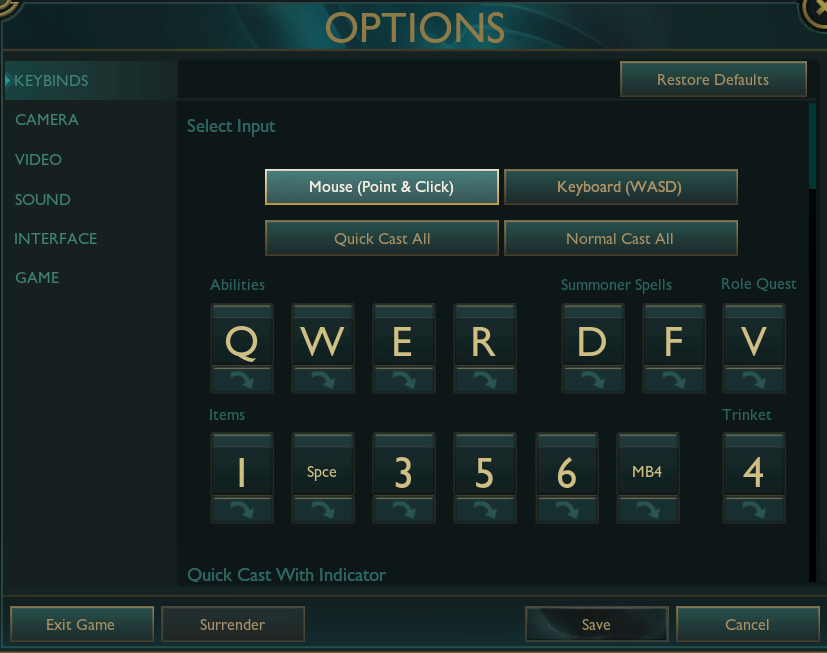
Tailoring your keybinds is one of the most important parts of making your LoL experience actually feel like yours. Faker, the most famous League player ever, runs almost completely standard binds like QWER for abilities and wards on 4. But ask any hardcore OTP about their setup - I bet you’ll get totally different answers every time. Here are the control tweaks I consider must-haves if you want your inputs to feel clean, fast, and consistent:
- Rebind spells and items to whatever feels the most natural for you instead of blindly copying anyone’s setup. For example, I put my control wards in the 7th item slot and bind that to a side mouse button, because it makes dropping vision instant and brainless for me. That’s just my preference though - experiment until your own layout feels just as automatic. Feel free to copy my loadout and have some fun with it in Practice Mode.
- Quickcast all abilities. I used to play with Quick Cast with Indicator on everything before WASD movement was added (we’ll get to WASD later). It slightly delays your spell even if you release the key fast, so if you want instant casts but still need to see ranges, bind the “Normal Cast” versions to Shift+Q/W/E/R instead. I also highly recommend turning Quick Cast with Indicator on for items separately in the “Quick Cast With Indicator” items list - it works insanely well for precise ward placement. Hunting down a pixel in the enemy jungle while standing in the dragon pit is a struggle, until the game highlights it for you, right?
- Use “Attack Move” options properly so you kite instead of misclicking. I prefer using Player Attack Move Click bound on A, but some prefer the “Attack Move on Left Click” option. However, the most important part here to make it work is enabling “Attack Move on Cursor” in the Game section. This allows you to target the enemy closest to your cursor and not to your champ.
- Also turn on “Show attack range” in the Interface tab so you can actually see your auto range whenever you press your Attack Move key.
- Use "Target champions only" so you stop accidentally hitting minions or wards instead of the enemy. I bind it to C and turn on “Treat Target Champions Only as a Toggle” in the Game settings, so I may quickly lock my autos for a fight with one click only.
LoL Gameplay Attunements - All You Need in One Place
League lets you tweak a ton of little things that quietly add up to a huge difference in how the game feels. This section walks through the core settings that actually matter, so you can tune everything to your own tastes instead of sticking to defaults.
Game
- Turn off auto-attacking by default so your champ only autos when you actually tell it to. This makes it way easier to hold the wave where you want it, avoid accidentally breaking freezes, and not waste long auto cooldowns (like Jhin’s FOUR) on the wrong target.
- Disable movement prediction, so the game stops “helping” your clicks and just follows your actual inputs. This may only be useful if you have high ping consistently (I hope this actually saves nerve cells for high-ping sufferers)
- “Clamp cast target location within max range” is a pretty controversial setting, so don’t just flip it on and forget about it. It can be great on champs like Viktor, letting you walk a tiny step forward and still get your Q off even if you clicked slightly out of range, but it can also completely mess up precise spells like Annie R by snapping your cast to max range instead of exactly where you clicked. Think about how your main champions’ abilities work and test them in the Practice Tool before committing.
- A friendly reminder: turn on “Attack Move on cursor” here.
- Same for “Treat target champions only as a toggle” setting - turn it on as well.
Interface
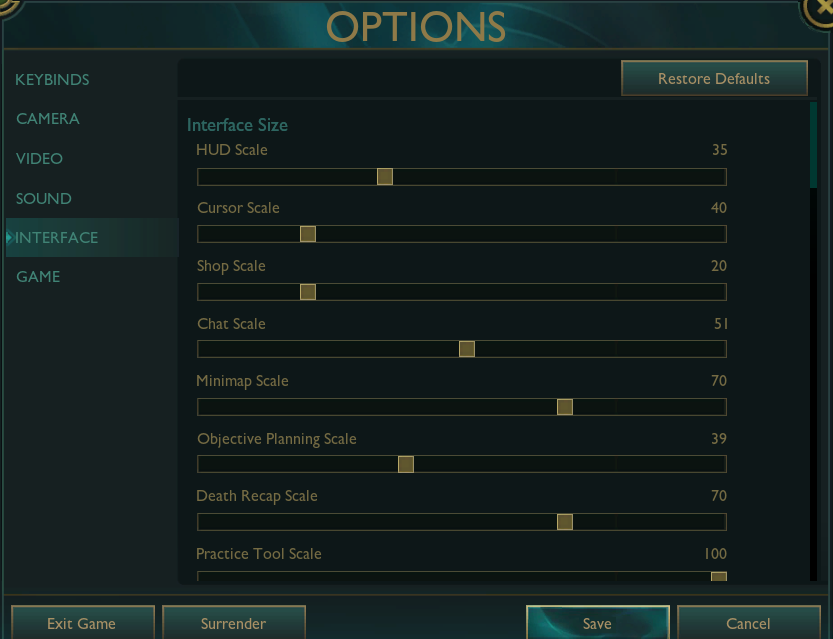
- Shrink your HUD so it takes up less space, and you can see more of the actual fight instead of gigantic UI frames.
- Make your minimap larger so you spot rotations, TPs, and flankers instantly. Pros keep this on 70-80 because “big is not always good”: a giant minimap would take too much space on your screen.
- “Show Loss of Control UI” is an important extra: you can see statuses above champs’ healthbars. With it turned on, you’ll always know who is rooted and for how long they’ll stay rooted.
- If you're a newbie, turn on "Show champion name above healthbar" instead of summoner names. This is a game-changer for a game with thousands of skins and color schemes.
- Screen flash on damage & on loss of control helps you to stay alert when watching some other lanes with your in-game camera - an essential for peepers!
- “Show spell costs” helps you plan your next moves around your mana bar instead of guessing. You’ll know exactly whether you can afford one more spell combo or if you need to chill so you don’t flop with 0 mana mid-fight.
- Enable all minimap timers - roam or counter-roam your laner with ease. May be kept disabled if you are used to pressing tab for additional minimap and objectives’ info.
- I highly recommend turning off enemy emotes for fewer distractions and ragebating. I get mad really quickly, especially when losing or getting ganked - no need for additional stress sources.
- As for “Combat Texts,” choose all you need or don’t need. I suggest turning on Experience in addition to the ones already turned on.
- “Display champion sound notification” - always on, especially if you love playing with music as I do. An additional visual marker of incoming danger is never a bad option.
Video
I’ve prepared a separate in-depth guide on getting the most FPS and stability in League - check the Best LoL video settings guide if you want the full breakdown. For gameplay, the rule of thumb is simple: keep most video settings low for performance, keep effects and champion models high for clarity, and always disable vertical sync to reduce input lag.
Sound & Camera
- All my homies and I use free camera mode. We got used to it. Still, Riot has recently released the Dynamic camera. You should give it a try, especially if you’re a new player. There is a handy feature called Scout Ahead - hold the mouse wheel button and move your camera to spy, then release to let the camera return to your champ. You can freely rebind it to any key you like, and I recommend trying a side mouse button for it. It feels pretty natural for me.
- Experiment with camera move speed - it’s just as important as setting hotkeys for your needs.
- Enable the “Smooth camera” option for less image tearing.
- Mute in-game music and ambience so you can focus on important sounds like abilities, pings, and summoner spells instead of background noise. I personally keep a tiny bit of ambient volume, so the game doesn’t feel completely lifeless, but that’s optional.
- Max out sound FX volume. People react to sounds faster than to what they see, so let enemy skillshots be clear and noticeable.
LoL WASD Movement - 2026 Meta?
Even though WASD movement isn’t allowed in ranked yet in Season 26.3, it already works in every other game mode, and it’s honestly a blast to use. I tried it once, and now I play all my ARAMs and normals on pure WASD. In this section, I’ll walk you through how it works. Have a peek at my cursed WASD layout for inspiration:
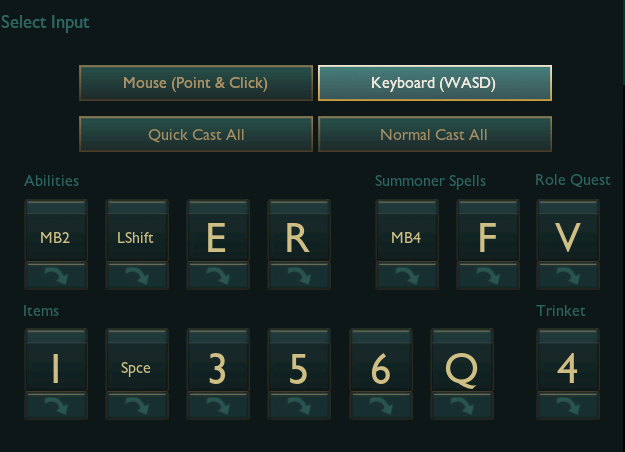
Once you switch to WASD, you also need to rethink where your abilities and spells sit so they’re still easy to press while your left hand is glued to movement. A simple starting point is keeping Q on Q, moving W spell to RMB or Shift, and putting a summoner spell on C. Another option is to simply set QWER to 1-4 numbers (and put items somewhere else), if that lines up better with your fingers. Don’t forget to change the “Flash Handling Type” setting to “Movement” so that using Flash with your new layout feels intuitive.
Both control types have their own strengths, so you shouldn’t feel the need to "pick the right one" just yet. Think of WASD as an experiment. Play about 10 games using it, take note of what feels better for your hands and decide from there what control scheme you want to commit your practice to. I’ve done the work for you to make the decision and comparison easier. Here’s my WASD vs Point and Click - pros and cons table:
|
Control scheme |
Pros |
Cons |
|---|---|---|
|
WASD movement |
Frees up the mouse for precise aiming and camera control, since movement sits on your left hand. |
Requires completely retraining muscle memory, so you will play worse for a while. |
|
Feels natural for players coming from shooters or action games that already use WASD. |
Fewer established guides and “standard” layouts, so you must experiment more. |
|
|
Can reduce spam-clicking on the ground and lower the chance of misclick pathing. |
Currently unavailable in ranked (Season 26.3), so you can only practice it in normals/ARAM. |
|
|
Mouse (point & click) |
Default League control scheme, so every guide, pro POV, and overlay assumes this setup. |
Shares mouse usage between movement and aiming, which can feel cluttered under pressure. |
|
Very precise pathing when you’re used to attack move and good click discipline. |
High click spam can be tiring on your hand over long sessions. |
|
|
No need to relearn your whole keyboard layout; works out of the box for all champs and modes. |
Easier to misclick onto the ground or minions when you’re panicking in hectic fights. |
Check out other Playhub League of Legends guides: