
Valorant is one of the most competitive tactical shooters on PC, and in 2026, the gap between casual comfort-oriented and optimized performance settings is wider than ever. Poor visibility, unnecessary input delay, or inconsistent sensitivity can cost rounds without you realizing why. This best Valorant settings guide breaks down the best Valorant settings for 2026 with a competitive focus.
Missed out on time-limited cosmetics? You can buy Valorant accounts loaded with rarest knives and agent gear on Playhub. Quick delivery and lots of offers to choose from.
Best Valorant Video Settings
Video settings form the backbone of competitive performance. Having a stable framerate is extremely important for your performance, so you absolutely have to use the best Valorant video settings in these sections:
-
Display Mode
-
Resolution and Aspect Ratio
-
Refresh Rate
-
VSync
-
Frame Rate Limiting
-
Low Latency Features
Valorant is designed to run well on a wide range of systems, but even high-end PCs can suffer from poor settings choices. The priority is always smooth frame rate, low latency, and clear visibility.
Display Mode
Fullscreen should always be enabled. This mode gives Valorant direct control over your display and minimizes input latency.
Resolution and Aspect Ratio
Using your monitor’s native resolution is the safest and most consistent choice. Native resolution preserves clarity at long sightlines and keeps character models sharp. Some players lower the resolution slightly to increase FPS in Valorant, but the visual trade-off is rarely worth it unless your system struggles to maintain stable performance. Stick to native resolution first, then optimize elsewhere.
Aspect ratio should remain standard. Stretched resolutions do not provide meaningful competitive advantages in Valorant and can distort visuals, undermining consistency.
Refresh Rate
This is one of the most important Valorant video settings - make sure Valorant is running at your monitor’s maximum refresh rate. Even moving from 60Hz to 144Hz can dramatically change how the game feels.
VSync
VSync should always be turned off. While it can eliminate screen tearing, it introduces input lag that directly affects aiming and reaction time.
Frame Rate Limiting
For most players, leaving FPS uncapped delivers the lowest possible input latency. If your system overheats or experiences frame spikes, capping FPS slightly above your monitor’s refresh rate can help stabilize performance. Otherwise, uncapped is the best option.
Low Latency Features
If supported by your GPU, enable low-latency features designed to reduce render queue delay. These settings help align your mouse input more closely with what appears on screen, which is critical in close-range gunfights.
Best Valorant Graphics Settings
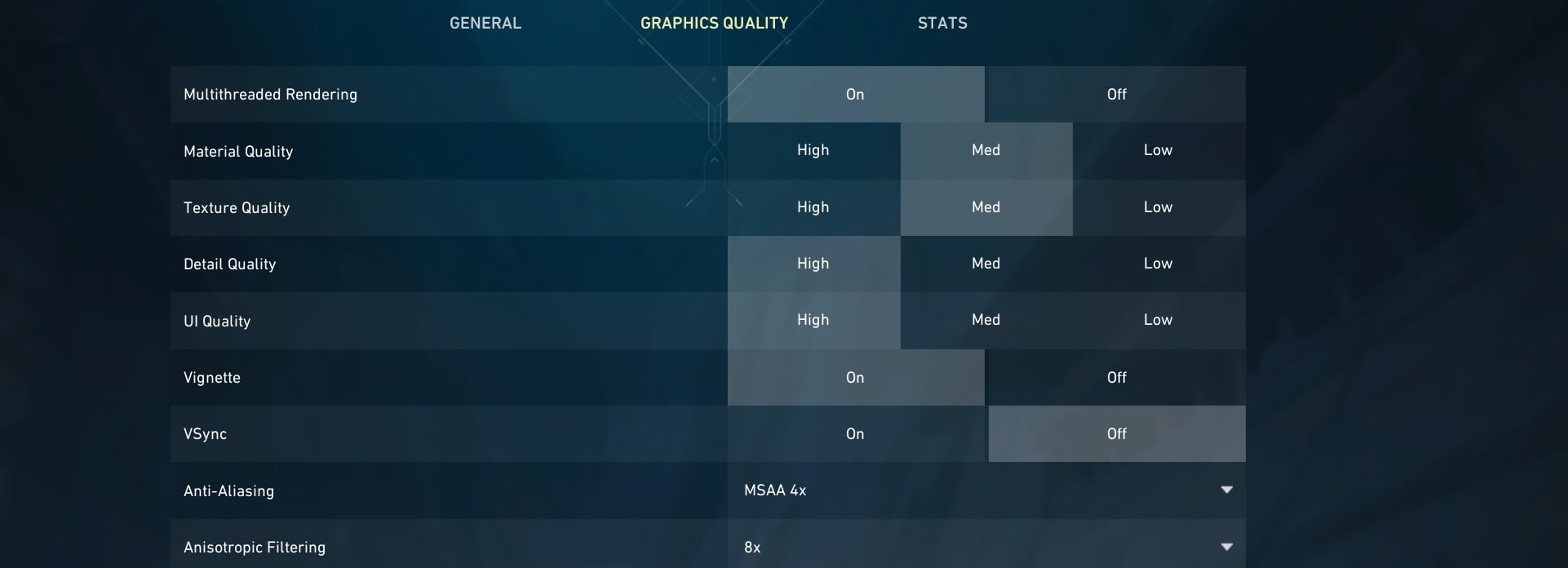
Valorant’s art style is clean and visibility-oriented by design, but unnecessary effects can still interfere with visual clarity. The most critical sections where you should opt for the best Valorant graphics settings are:
- Multithreaded Rendering
- Material, Texture, and Detail Quality
- UI Quality
- Visual Effects
- Enemy Highlight Color
Choosing the right setting is essential since some of the effects are impacting the visibility way too much when the wrong configuration is used. Let’s go over each section in detail:
Multithreaded Rendering
This should be enabled. It allows Valorant to better utilize modern CPUs, improving overall frame stability and reducing frame drops during intense fights.
Material, Texture, and Detail Quality
Lowering these settings improves clarity and performance. Reduced environmental detail makes enemy outlines stand out more clearly, especially in darker or visually busier areas of the map.
Texture quality can be set to low or medium, depending on available VRAM. Medium textures rarely harm performance on modern systems, but low option paired with reduced detail quality are widely considered the best Valorant video settings for competitive.
UI Quality
UI quality has little impact on gameplay, so setting it to low helps keep resource usage minimal without affecting readability.
Visual Effects
Several visual effects add cinematic flair but offer no competitive benefit. These should be disabled.
- Bloom can wash out bright areas and make enemy models harder to track.
- Distortion effects can obscure vision during abilities and explosions.
- Vignette darkens screen edges, reducing peripheral clarity.
- Sharpening filters adds processing overhead without a meaningful advantage.
Removing these effects results in a cleaner image and fewer distractions during fights.
Enemy Highlight Color
Choosing a high-contrast enemy outline color improves target acquisition. Many players prefer brighter options that stand out clearly against most map backgrounds. This setting alone can noticeably improve reaction time in fast engagements.
Best Valorant Settings for Aim - Mouse and Sensitivity
Mouse settings tend to be deeply personal, but competitive Valorant players usually follow consistent principles. There are several options sections where you should try to find your personal best Valorant settings for aim:
- DPI and Sensitivity
- Raw Input Buffer
- Mouse Acceleration
- Polling Rate
- Scoped Sensitivity Multiplier
Smooth, controlled mouse movement is key to landing consistent shots, so we’ll explain each setting in detail.
DPI and Sensitivity
Most high-level players use a DPI of 800 or 1600 combined with a moderate in-game sensitivity. What matters most is effective DPI, which determines how far your crosshair moves per inch of mouse movement.
Lower effective DPI improves precision for tracking and headshots. Higher values allow faster turns but can reduce consistency. The best approach to choosing your best Valorant competitive settings is a sensitivity that lets you comfortably turn 180 degrees with a full mousepad swipe while still allowing precise micro-adjustments.
Raw Input Buffer
Enable raw input buffering. This setting stabilizes mouse input and reduces inconsistencies caused by system polling or background processes. It is especially helpful for high-polling-rate mice.
Mouse Acceleration
Mouse acceleration should always be disabled. Consistent aim depends on predictable movement. Acceleration breaks muscle memory by changing how far your crosshair moves based on speed rather than distance.
Polling Rate
A 1000Hz polling rate is considered one of the best settings to play Valorant. This config ensures frequent enough input updates so that you don’t lose any of your uptime.
Scoped Sensitivity Multiplier
Keeping scoped sensitivity at 1.0 preserves consistency between hip-fire and scoped aim. This makes muscle memory transferable across weapons and reduces adjustment time when switching scopes.
Best Valorant Audio Settings
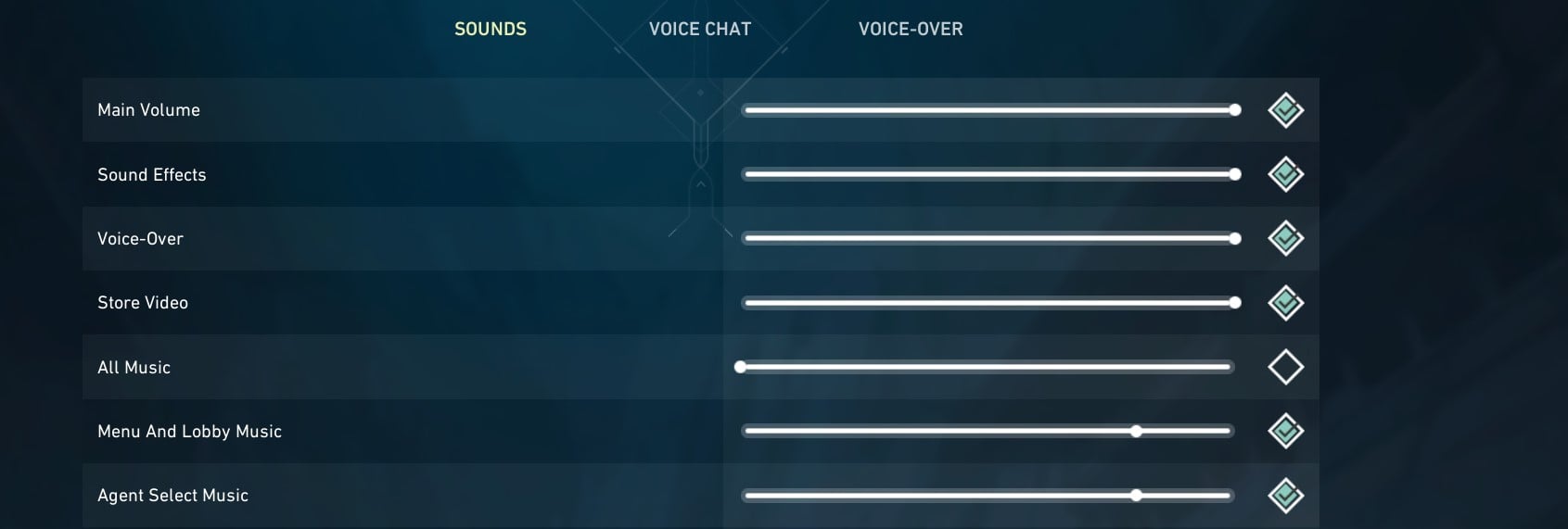
Audio is one of Valorant’s most powerful information tools. Footsteps, ability cues, reloads, and movement sounds provide constant situational awareness. To not miss out on any cues, you’ll have to utilize these best Valorant audio settings:
-
Spatial Audio
-
Sound Levels
-
Voice Chat
In the heat of the moment, hearing enemy rotations is extremely important, so let’s go over every category in detail:
Spatial Audio
Enable head-related transfer function audio. This improves directional accuracy, making it easier to tell where footsteps or abilities originate.
Stereo output works best when paired with spatial audio. External surround sound solutions often distort positioning and should be avoided.
Sound Levels
Sound effects should be loud enough to clearly hear footsteps and gunfire even during utility usage. Dialogue and announcer voices should remain audible without overpowering critical cues. Music has no place in your Valorant config - while atmospheric, it provides no competitive value and can conceal important sounds.
Voice Chat
Set voice chat to a comfortable level that does not drown out gameplay audio. Push-to-talk is recommended to prevent background noise and distractions.
Best Minimap Settings in Valorant
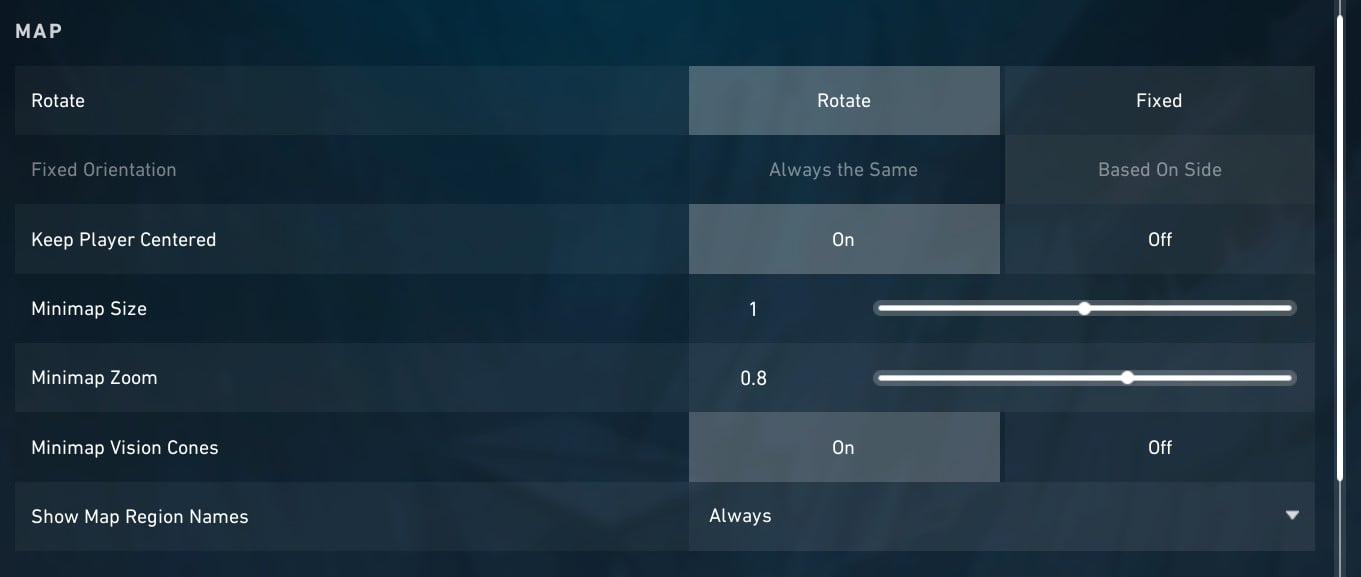
Information is critical, yet cluttering your screen too much is suboptimal. If we want our settings to focus on providing clarity without blocking vision, these are the best minimap settings in Valorant:
-
Rotate: Rotate
-
Fixed Orientation: Based on Side
-
Keep Player Centered: On
-
Minimap Size: 1
-
Minimap Zoom: 0.86
-
Minimap Vision Cones: On
-
Show Map Region Names: Always
A centered minimap allows you to track rotations and teammate positioning more easily. Adjust the scale so that important information is always visible.
Conclusion
The best Valorant settings in 2026 are centered around clarity, responsiveness, and reliability. A well-tuned setup supports your skill instead of fighting it. Start with the config we’ve covered in our Valorant settings guide, adjust it carefully, and let your mechanics and game sense win every round without unnecessary distractions.