
WARDOGS Best Settings TL;DR
-
Always use Fullscreen or Borderless Fullscreen, disable VSync, and enable NVIDIA Reflex if your GPU has it.
-
Try to keep Mesh Detail, View Distance, textures, and Texture Filtering on high. These settings provide the best visibility advantage, and you’ll definitely need it.
-
Disable Global Illumination, Motion Blur, Depth of Field, Lens Flare, and Bloom - these make the game look pretty but take their toll on performance. Set Shadows, Reflections, and Post-Processing to Low.
-
Use starting points of 95 FOV, Weapon View Model Scale 4, Affected ADS FOV, and Picture-in-Picture Scope disabled - then tweak these settings to your liking.
-
As for your mouse, 600 to 800 DPI, 0.70 sensitivity, and a 1.00 ADS multiplier is a good universal preset.
-
Enable 3D Spatial Audio, keep voice chat available, and leave important HUD information visible.
Running low on money? You can get lots of Wardogs cash on Playhub quickly. Competitive prices and quick delivery from trusted sellers on every order.
Best WARDOGS PC Settings
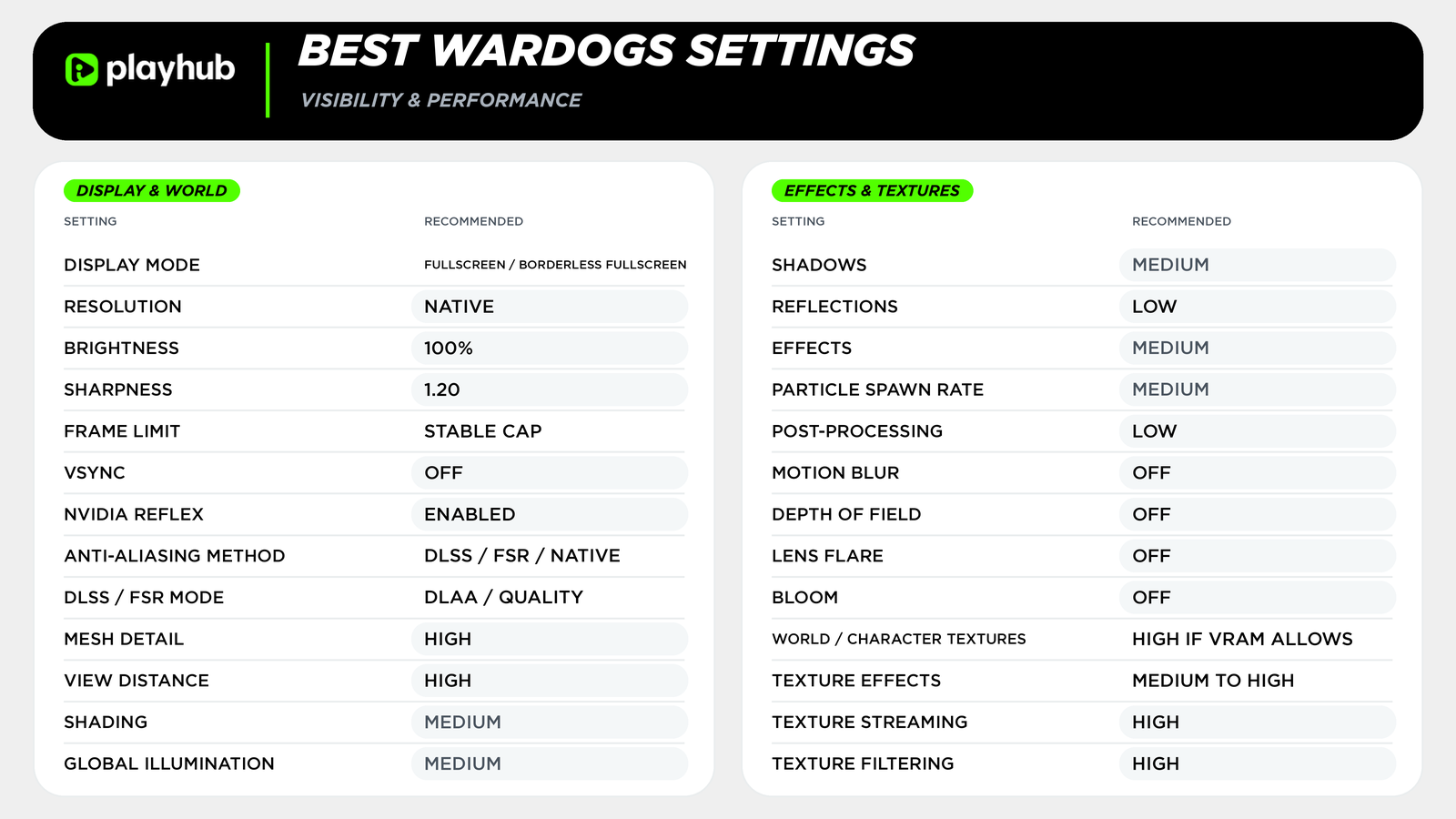
Conceptually, WARDOGS is not a small arena shooter - you get vibrant, modern-looking open spaces which are obviously pretty demanding on your hardware. You really need a well-tuned setup that gets you a balance between image quality and performance to get the most out of the game. Here’s a competitive profile I’ve put together with performance as a priority:
|
Setting |
Recommended |
|---|---|
|
Display Mode |
Fullscreen / Borderless Fullscreen |
|
Resolution |
Native |
|
Brightness |
Around 100% |
|
Sharpness |
Around 1.20 |
|
Frame Limit |
Stable cap |
|
VSync |
Off |
|
NVIDIA Reflex |
Enabled |
|
Anti-Aliasing Method |
DLSS / FSR / Native |
|
DLSS / FSR Mode |
DLAA or Quality |
|
Mesh Detail |
High |
|
View Distance |
High |
|
Shading |
Medium |
|
Global Illumination |
Disabled |
|
Shadows |
Low |
|
Reflections |
Low |
|
Effects |
Medium |
|
Particle Spawn Rate |
Low |
|
Post-Processing |
Low |
|
Motion Blur |
Off |
|
Depth of Field |
Off |
|
Lens Flare |
Off |
|
Bloom |
Off |
|
World / Character Textures |
High if VRAM allows |
|
Texture Effects |
Medium to High |
|
Texture Streaming |
High |
|
Texture Filtering |
High |
Global Illumination is the first setting I’d turn off. All it does is control indirect lighting across these massive scenes, and it can be performance-expensive for no benefit. WARDOGS settings tests measured roughly a 20% gain in one closed-beta scene, although the exact increase obviously depends on the hardware and location you’re in. Also, if you have a beastly machine, make sure to set the frame cap to the highest number your monitor can maintain to avoid annoying stuff like throttling, etc.
Best WARDOGS Settings for High FPS on Low-End PCs
Low-end WARDOGS tweaking is all about trying to get the most stable framerate. An FPS game swinging between 90 and 35 FPS feels awful; you’re going to be much better off staying at a stable 60ish framerate that is much easier to aim with.
|
Setting |
Recommended |
|---|---|
|
Display Mode |
Fullscreen |
|
Resolution |
Native 1080p or 1600x900 |
|
Frame Limit |
60, 72, or another stable cap |
|
VSync |
Off |
|
NVIDIA Reflex |
Enabled if available |
|
Upscaling |
DLSS / FSR Quality or Balanced |
|
Mesh Detail |
Medium |
|
View Distance |
Medium to High |
|
Shading |
Low to Medium |
|
Global Illumination |
Disabled |
|
Shadows |
Low |
|
Reflections |
Low |
|
Effects |
Low |
|
Particle Spawn Rate |
Low |
|
Post-Processing |
Low |
|
Motion Blur |
Off |
|
Depth of Field |
Off |
|
Lens Flare |
Off |
|
Bloom |
Off |
|
World / Character Textures |
Medium |
|
Texture Effects |
Medium |
|
Texture Streaming |
Medium |
|
Texture Filtering |
Medium or High |
Generally, WARDOGS should be installed on an SSD. The game streams a huge amount of environment assets while players build, destroy, and fly across it. Also, the official WARDOGS Steam page lists a GTX 1660 or RX 590, 16 GB RAM, and 1080p Low at 60 FPS with upscaling as the minimum target. The recommended RTX 3070 or RX 6700 XT target is 1440p Medium at 70+ FPS natively, but IDK, I wouldn’t even try to run it on something like a 590; it’s way too dated at this point.
Best WARDOGS Mouse Settings
Mouse settings are obviously personal, but the game provides enough advanced controls to build a predictable starting point. The goal is to make the mouse movement stable and not get in the way of your vision:
|
Setting |
Recommended |
|---|---|
|
Mouse DPI |
800 |
|
Infantry Sensitivity |
Around 0.70 |
|
ADS Multiplier |
1.00 |
|
Mouse Acceleration |
0.00 / Off |
|
Sensitivity Scaling Mode |
Relative |
|
Monitor Matching Distance |
100% |
|
Scaling Transition Type |
Instant |
|
Invert Y Axis: Infantry |
Disabled |
|
Ground Vehicle Multiplier |
0.50 |
|
Air Vehicle Multiplier |
0.50 |
|
Rotary Vehicle Mouse Control |
Enabled |
I have to stress that the Mouse Acceleration should stay at 0.00 at all times. Stuff like relative scaling, 100% Monitor Matching Distance, and an Instant transition also keep aiming more consistent when entering ADS.
Best Controller Settings for WARDOGS
WARDOGS is PC-only, but controllers are supported in the current build. Native rebinding is more limited than mouse and keyboard, so sensitivity and dead zone tweaking does most of the work.
|
Setting |
Recommended |
|---|---|
|
Horizontal Sensitivity |
5.3 |
|
Vertical Sensitivity |
4.9 |
|
ADS Multiplier |
0.68 |
|
Look Acceleration |
Enabled |
|
Look Acceleration Curve |
Standard |
|
Acceleration Multiplier |
1.3 |
|
Acceleration Threshold |
0.80 |
|
Acceleration Pitch Weight |
0.20 |
|
Response Curve |
Dynamic |
|
Ground Vehicle Multiplier |
0.50 |
|
Air Vehicle Multiplier |
0.50 |
|
Look Stick Centre Deadzone |
2% |
|
Look Stick Axial Deadzone |
2% |
From what I’ve seen, the low look deadzone makes the biggest difference. It makes small corrections feel much more precise, which matters when tracking enemies sneaking in distant cover. But if the camera moves by itself, raise the center deadzone until it stops.
Best Audio Settings for WARDOGS
WARDOGS audio is extremely important. The goal is to hear the battlefield’s crucial info without letting music or somebody’s microphone destroy the mix.
|
Setting |
Recommended |
|---|---|
|
3D Spatial Audio |
Enabled |
|
Master Volume |
Preference |
|
Effects Volume |
High |
|
Music Volume |
Low or Off |
|
Enable Sound in Background |
Disabled |
|
Voice Chat |
Enabled |
|
Squad Voice Chat |
Enabled |
|
Proximity Voice Chat |
Enabled |
|
Microphone Volume |
Start at 100, then test |
|
Headphones |
Recommended |
For the HUD, keep absolutely crucial info visible: Cash, Health, Compass, Minimap, Equipped Item, Central HUD Reward, and Killfeed. Location Context and Chatbox can stay Dynamic so they disappear when nothing useful is happening.
Find More WARDOGS Guides here: