
WoW Forever Best Settings TL;DR
-
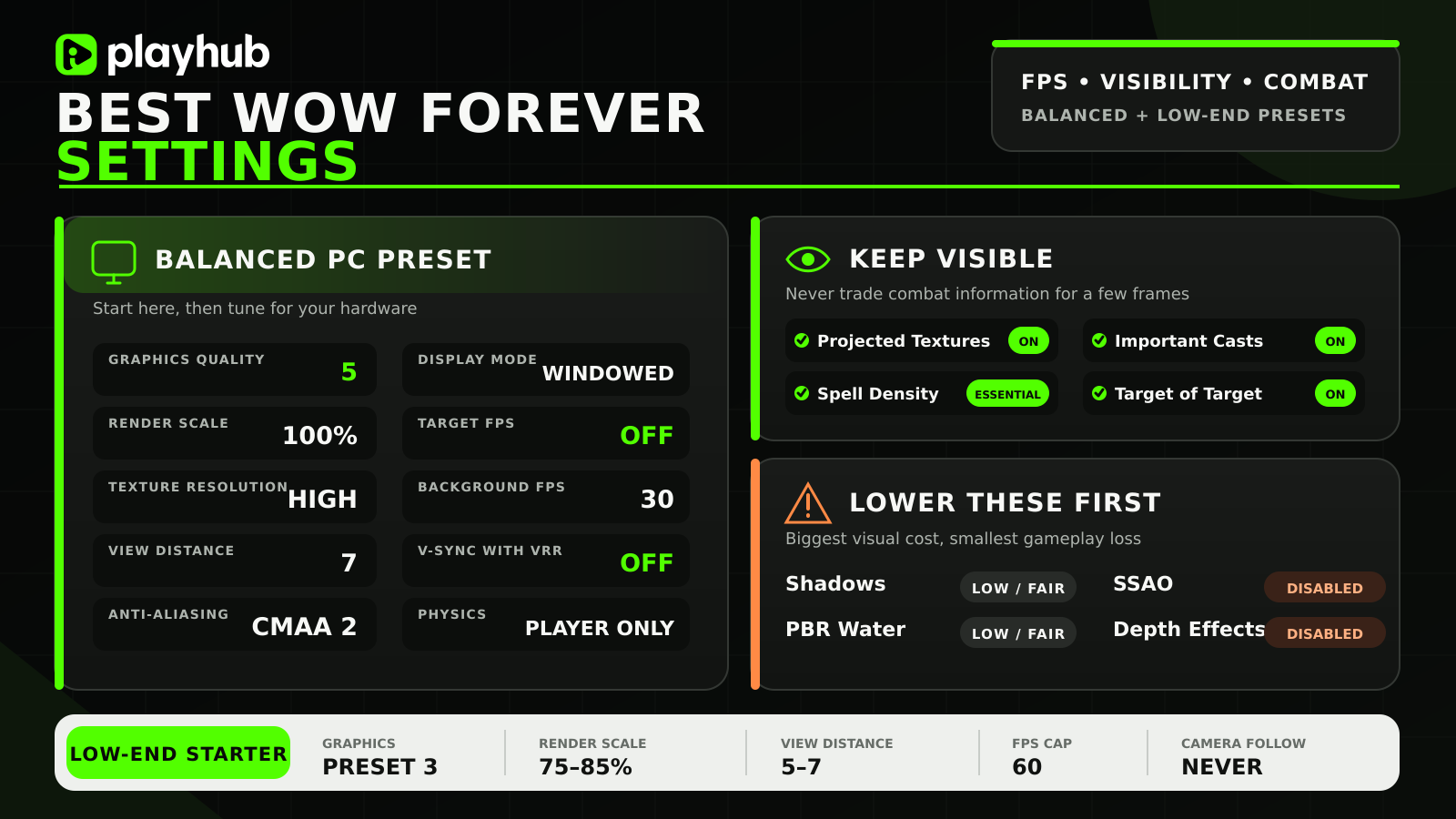
Sweetspot settings for a lower-end PC are Graphics Quality 5, then lower shadows, water, SSAO, compute effects, and secondary lighting before touching textures.
-
Keep Projected Textures enabled and Spell Density on Essential so that ground effects are clearly visible.
-
Use native resolution at 100% render scale when possible; lower the scale if you need more FPS.
-
Set Camera Following Style to Never, and enable Target of Target.
-
Use class-colored raid frames, dispellable-debuff indicators, and the built-in Cooldown Manager for group play.
Starting out in a fresh economy? You can get WoW Forever Gold on Playhub, with competitive prices and quick delivery from verified sellers.
Best WoW Forever PC Settings
Forever is not quite the lightweight version of Classic that some players may expect. Azeroth has the old art direction, but Blizzard has added a modern renderer with a bunch of features:
-
dynamic lighting
-
volumetric fog
-
improved water
-
longer draw distances
As a result, the game looks great, especially in forests and around water, but runs noticeably heavier on hardware. To counteract the performance hit, here is the balanced setup I would start with on a modern mid-range PC:
|
Setting |
Recommended |
|---|---|
|
Display Mode |
Fullscreen (Windowed) |
|
Resolution |
Native monitor resolution |
|
Render Scale |
100% |
|
Vertical Sync |
Off with G-Sync/FreeSync |
|
Low Latency Mode |
Auto Detect or Enabled |
|
Anti-Aliasing |
Image-Based, CMAA 2 |
|
Graphics Quality |
5, then customize |
|
Texture Resolution |
High |
|
Texture Filtering |
16x Anisotropic |
|
Shadow Quality |
Low or Fair |
|
Legacy Liquid Detail |
Fair |
|
PBR Liquid Detail |
Low or Fair |
|
Particle Density |
Good |
|
Spell Density |
Essential |
|
Projected Textures |
Enabled |
|
SSAO |
Low or Disabled |
|
Bloom Intensity |
Low |
|
Depth Effects |
Disabled |
|
Compute Effects |
Low or Good |
|
Secondary Lighting |
Fair or Good |
|
View Distance |
7 |
|
Environment Detail |
5 |
|
Ground Clutter |
3 to 5 |
|
Ray-Traced Shadows |
Disabled |
|
Physics Interactions |
Player Only |
|
Max Foreground FPS |
Stable cap matching your display |
|
Max Background FPS |
30 |
|
Target FPS |
Off |
There are two settings that are never worth sacrificing. Projected Textures are responsible for ground-based spell effects, and Spell Density controls how many combat effects remain visible. Hiding damaging puddles to gain a handful of frames is a terrible trade, especially once you get to the raids.
Best WoW Forever Settings for Low-End PCs
Low-end optimization is all about getting consistency in how the game plays. Frame jumping between 90 and 35 feels awful when you’re in combat, so you have to try to get the game to run as stable as possible. Start from preset 3, apply the changes below, and only raise settings after testing performance in a populated area.
|
Setting |
Low-End Recommendation |
|---|---|
|
Display Mode |
Fullscreen (Windowed) |
|
Resolution |
Native 1080p or 1600x900 |
|
Render Scale |
75% to 85% |
|
Anti-Aliasing |
CMAA 2 |
|
Graphics Quality |
3, then customize |
|
Texture Resolution |
Medium; High if memory allows |
|
Shadow Quality |
Low |
|
Legacy Liquid Detail |
Fair |
|
PBR Liquid Detail |
Low |
|
Particle Density |
Low |
|
Spell Density |
Essential |
|
Projected Textures |
Enabled |
|
SSAO |
Disabled |
|
Bloom Intensity |
Low |
|
Depth Effects |
Disabled |
|
Compute Effects |
Low |
|
Secondary Lighting |
Fair |
|
View Distance |
5 to 7 |
|
Environment Detail |
3 |
|
Ground Clutter |
3 |
|
Ray-Traced Shadows |
Disabled |
|
Physics Interactions |
Player Only |
|
Max Foreground FPS |
60 |
|
Max Background FPS |
30 |
|
Target FPS |
Off |
Render scale is essentially the emergency lever. You can try 85% first, then 75% if the game still struggles and see how bad the visuals are. Going much lower starts making the game look unplayable. Use FSR 1.0 as the resample option when running below 100%, but do not expect it to rebuild every fine detail perfectly; you’re still going to get artifacts and weird visual glitches here and then.
View Distance is worth trying to keep higher because WoW is an open-world game. I would rather play at View Distance 7 with basic shadows than max out shadows and watch objects pop close to the character. Environment Detail and Ground Clutter can stay around 3 on weaker machines without making Azeroth look completely empty.
Blizzard has also raised the floor for supported hardware. The official WoW Forever GPU notice lists DirectX 12 support and a newer GPU generation as part of the minimum target, so that tells something by itself - you’ll need a modern PC for this version of the game.
Best WoW Forever Interface Settings
The default UI is much stronger than the one Classic launched with. Forever includes Edit Mode, click casting, a Cooldown Manager, improved nameplates, and better raid-frame options. So in this game’s version, you can build a clean interface without installing a pile of add-ons.
|
Interface Setting |
Recommended |
|---|---|
|
Sticky Targeting |
On |
|
Auto Loot |
On |
|
Combine Bags |
On for leveling; optional later |
|
Camera Following Style |
Never |
|
Status Text |
Both percentage and value |
|
Personal Resource Display |
Only in Combat |
|
Show Silhouette When Obscured |
On |
|
Target of Target |
On |
|
Highlight Important Casts |
On |
|
Cooldown Manager |
On |
|
Grid and Snap to Elements |
On while editing HUD |
Personal Resource Display only in Combat is the sweet spot between accessibility and information. Show Silhouette When Obscured is also worth enabling because trees, cave walls, and large bosses can block the character at exactly the wrong moment.
Best WoW Forever Combat and Targeting Settings
Combat settings should reduce the number of clicks between seeing a problem and reacting to it - that goes for every role, but healers and tanks are especially affected by this change..
|
Combat Setting |
Recommended |
|---|---|
|
Enemy Nameplates |
On |
|
Friendly Nameplates |
Preference; usually Off in raids |
|
Target of Target |
On |
|
Highlight Important Casts |
On |
|
Mouseover Casting |
On for healers and support abilities |
|
Click Casting |
Set core heals and dispels |
|
Action Targeting |
Preference |
|
Self Cast Key |
Alt or another comfortable modifier |
Target of Target should always be on. A tank can see whether a mob has reaggroed to a damage dealer, a healer can anticipate damage on a new target, and a DPS player can tell when his threat generation becomes a problem.
Healers should set up mouseover or click casting long before entering a dungeon. Binding the main heal, emergency heal, and dispel directly to unit frames removes a full retargeting click step. The current Forever UI guide confirms that click casting and cooldown tracking are built into the client, so these basics no longer require an add-on to be used.
Best WoW Forever Raid Frame Settings
Your perfect Raid Frame setup depends heavily on which role you’re playing. For a healer, move the frames closer to the center and make them large enough that debuff icons are readable. For DPS, they can sit farther toward the side, but do not hide them completely. Battle resurrection, dispels, buffs, and emergency utility still depend on knowing who is alive and who is in trouble.
|
Raid Frame Setting |
Recommended |
|---|---|
|
Use Raid-Style Party Frames |
On |
|
Display Class Colors |
On |
|
Display Power Bars |
On |
|
Display Dispellable Debuffs |
On |
|
Display Pets |
Off unless needed |
|
Keep Groups Together |
On for organized raids |
|
Frame Size |
Large enough to read debuffs clearly |
|
Health Text |
Percentage and value |
Best Controller Settings for WoW Forever
Forever has official gamepad support on PC, including controller-focused targeting and layered bindings. The slower Classic-style combat makes the setup more practical than many players expect, although inventory management and dense raid healing are still way easier with a keyboard and mouse:
|
Controller Setting |
Recommended |
|---|---|
|
Controller Type |
Xbox or equivalent native layout |
|
Camera Sensitivity |
Medium, then adjust |
|
Targeting |
Soft targeting enabled |
|
Action Targeting |
On for leveling and melee |
|
LT / RT Modifiers |
Main action-bar layers |
|
D-Pad |
Targeting or utility |
|
ABXY |
Core rotational abilities |
|
Radial Menu |
Mounts, consumables, bags, and utility |
|
Vibration |
Preference |
|
Interface Cursor |
Enabled |
Put the abilities used the most on the unmodified face buttons. Blizzard’s official Forever panel recap confirms native gamepad support, so ConsolePort is no longer required just to make a controller function.
Best WoW Forever Audio Settings
WoW does not demand the same footstep-focused mix as a competitive shooter, but audio cues still matter. Important stuff like boss lines, cast sounds, and ready checks should remain audible:
|
Audio Setting |
Recommended |
|---|---|
|
Master Volume |
Preference |
|
Sound Effects |
80% to 100% |
|
Dialogue |
70% to 100% |
|
Ambience |
40% to 60% |
|
Music |
20% to 40% |
|
Error Speech |
Off if repetitive |
|
Sound in Background |
On if alt-tabbing during queues |
|
Voice Chat |
On when used by the group |
|
Headphone Mode |
Enable when using headphones |
I keep ambiance and music high while leveling because the world is realistically the main reason to play Classic-style WoW. For a raid night, I lower both and leave effects and dialogue near the top. That keeps mechanic sounds clear without turning the game into complete silence.
Find More WoW Forever Guides