
WoW Midnight Best Settings TL;DR
-
Use a Graphics Preset around 6–7 with Render Scale at 100% for the best balance on midrange PCs.
-
Keep Texture Resolution High and Texture Filtering at 16x if you have enough VRAM.
-
Lower Shadow Quality, SSAO, Depth Effects, and Ground Clutter first since they hit performance the most.
-
Set Particle Density to Low or Medium to reduce screen clutter during raids and world events.
-
Use Windowed Fullscreen for easy Alt Tabbing, Native Resolution, and disable V Sync for better responsiveness.
-
Enable key Interface options like Always Show Nameplates, Incoming Heals, Target of Target, and Personal Resources for clearer combat awareness.
-
Accessibility tweaks like disabling Camera Shake and enabling Photosensitivity Mode help reduce visual overload.
-
Control settings such as Auto Loot and Interact Key improve everyday gameplay flow and reduce downtime.
BoEs, consumables, and day-to-day expenses are set to drain your gold super fast. You can skip the gold grind and cover expenses entirely - just buy WoW gold on Playhub. Secure and fast delivery from verified sellers only.
Best Graphics Settings for WoW Midnight
The goal of this preset is to keep the game’s look pretty while making the framerate stable. It’s versatile and completely viable for any type of content you’ll do in game - from BGs to Delves. Keep in mind that it’s mainly targeted for midrange PC’s, so if you’re rocking 5090, then feel free to crank everything up to 10. The baseline best graphics settings in Midnight are:
-
Graphics Quality Preset: 6 or 7
-
Render Scale: 100%
-
Texture Resolution: High
-
Texture Filtering: 16x
-
Projected Textures: Enabled
From there, move on to the detailed settings and set them somewhat like this:
|
Setting |
Recommended value |
Details |
|---|---|---|
|
View Distance |
7+ |
The more the better, but 7 is a nice midrange value which keeps everything you’ll need, like Elites and gathering nodes visible, while not overloading your PC |
|
Environment Detail |
7 |
In fact, you can go lower there if you prefer your vision to be as clear as possible; this setting is responsible for how pretty the textures look |
|
Ground Clutter |
4–6 |
Helps FPS in packed fights |
|
Shadow Quality |
Low to Good |
Shadows are really hardware-heavy, so it’s preferred to tone them down |
|
Liquid Detail |
Good |
Water looks fine, avoids heavy reflections |
|
Particle Density |
Low |
I like them to be at mid-range values, ultra is cluttering the screen too much, and low is best if you’re melee. |
|
SSAO |
Low to Good |
Nice visuals, but not worth it if you’re on a low-to mid-range PC |
|
Depth Effects |
Low |
Prefer this off since the visual difference is not that noticeable, but performance is getting affected a lot. |
|
Compute Effects |
Good |
Keeps modern effects without going overboard |
|
Outline Mode |
High |
Should be always at high - it boosts the readability of targets so much without affecting performance. |
|
Spell Density |
Everything |
You can play around with these depending on how you like your game to be. If you prefer flashier combat - everything is a setting to go, if you’re a melee dps struggling with visibility, go with “Essential”. Dynamic is the worst option since it’s going to be confusing to see different visuals for the same spells mid-fight |
|
Projected Textures |
Enabled |
Always on - it affects how boss mechanics are displayed on the ground |
If you have 8-12+ GB of VRAM, texture-related settings should be essentially free performance-wise, so try different settings out and see how the game plays.
Best WoW Midnight Settings for Low-End PC
When playing on older hardware or on the go on your laptop, your graphics should be toned down to get the most out of what you got:
-
Graphics Quality Preset: 3 or 4
-
Render Scale: 90–100%
-
Texture Resolution: Medium
-
Texture Filtering: 8x
-
Projected Textures: Enabled
Moving on to the detailed settings, they should look something like this:
|
Setting |
Recommended value |
Details |
|---|---|---|
|
View Distance |
5-6 |
Reduces how much the game renders at once, which helps with performance. If you can squeeze out 7 with your setup, I highly recommend you do - playing on lower values hinders your open world experience a lot |
|
Environment Detail |
4–5 |
Keeps the world readable without overloading weaker CPUs. |
|
Ground Clutter |
2–3 |
One of the biggest FPS savers. |
|
Shadow Quality |
Low |
Shadows are very demanding. Low gives a big performance boost with minimal gameplay-related clarity loss. |
|
Particle Density |
Low |
Key for raids and BGs on weaker hardware. Fewer particles means less visual noise and better FPS in combat. |
|
SSAO |
Disabled or Low |
Looks nice but costs performance. Turning it down keeps FPS more stable at the cost of blurry visuals. |
|
Depth Effects |
Disabled |
Cinematic fog effects rarely help gameplay and can reduce clarity, so disabling them is ideal. |
|
Compute Effects |
Fair |
You can turn it down completely if you’re really struggling for FPS. |
|
Outline Mode |
High |
Keep this high. It improves readability a lot without a real performance impact. |
|
Spell Density |
Essential |
Cuts visual clutter and makes your frame rate more stable |
It’s hard to find your sweetspot with lower-end hardware, but there’s no going around it. With WoW, it’s quite possible to get decent visual quality even on the 10+ year old laptops.
World of Warcraft Display Settings
Display settings are pretty straightforward; however, there are a few of them you should always change. Display settings you should be aware of are:
-
Display Mode: Windowed Fullscreen to Alt-Tab without hassle
-
Resolution: Native to your screen
-
V-Sync: Off - it tanks performance
-
Triple Buffering: Off, but it depends on how powerful your PC is
-
Max Foreground FPS: whatever your monitor’s max is
-
Max Background FPS: 30 (or lower, to save power while tabbed out)
Nothing fancy here, these are defaults in almost any game. Some OG players prefer unusual aspect ratios and resolutions, but anything but native is suboptimal.
WoW Interface Settings
With UI addons gone, it’s up to this menu to provide us with a smooth experience. Here are the most important WoW interface settings you should tune:
Names settings
-
My Name: Up to debate, I’ve lost track of my characters in raids a couple of times and have kept this setting on ever since. If you’re visually impaired(maybe even legally blind) like me, that’s a nice setting to keep On.
-
Friendly Players: Always On, but their minions should be mainly off, unless you’re trying to heal hunter’s pets
-
Enemy players: Always On. Pets are up for debate, especially in PvP. I prefer to keep them on to better understand what Unholy DKs and Hunters are trying to do to me at any given time.
-
Always Show Nameplates: Always On. Knowing what HP your opps and allies are at is very important.
Raid Frames settings
-
Display Incoming Heals: Always On to understand what the situation is and when to pop CDs
-
Display Power Bars: On, to keep track of your teammates' current resource situation
-
Display Aggro Highlight - always on, especially if you’re a Tank or melee DPS.
-
Show Debuffs - On, important info
Arena settings are the same as in the Names section, plus add the display HP percentage setting. BTW, for info on best Arena classes, check out our class tier list.
Combat settings
-
Personal Resource, Personal Cooldowns, Personal Buffs: Everything should be always On.
-
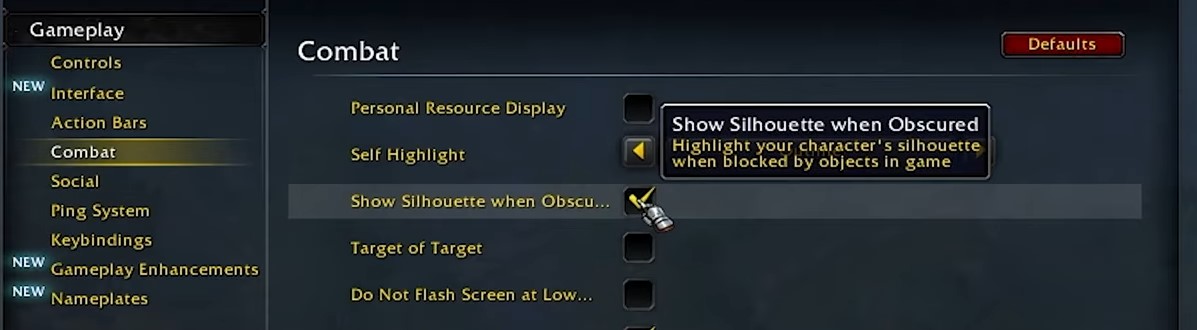
Show Silhouette When Obscured: Super useful in Dungeons and Raids, On
-
Target of Target: On, you’ll get so much info from checking a single box, it’s crazy
-
Do Not Flash Screen On Low Health - IMO should be On, you should rely on your bars for tracking health, having this obscuring effect is annoying to me
-
Mouseover Cast - Up to your preference, I think it’s excessive, but lots of players use it.
-
Press and Hold Casting: I like this On for Mage and Shaman, helps with not pressing the same button over and over for repeated resource generator casts
Best Accessibility Settings in Midnight
Once again, we’ll have to make do without addons from now on, so Accessibility is the section we all should familiarize ourselves with. There are several useful boxes and sliders here:
-
Camera Shake - Off. This feature rubbed me the wrong way, especially on Demon Hunters, so an ability to get it gone is very welcome
-
Motion Sickness - On, just keeps your camera extra stable and centered
-
Enable Photosensitivity Mode - On, just makes everything tamer, with how many glowing, shining things are on the screen, it’s a nice setting to have
-
Self-Highlight: I like the Circle one, which makes it easier to find yourself in cluttered situations
-
Skyriding Screen/Speed Effects: I prefer this turned off, as it looks both aesthetically more pleasing and makes your image way clearer. With how beautiful WoW’s world is, why would you want to see weird wind effects?
Largely all of these are up to your preference, but the optimized preset for best visibility should look somewhat like this.
Best WoW Control Settings
As for the Control section, there are a lot of important settings affecting the actions you’ll do a lot every day:
-
Auto Loot - a gamechanger, always On, makes you pick up loot items automatically, which makes looting so much faster
-
Combine Bags - up to preference, but having one large space could be better for navigation
-
Loot Key - makes it so that you loot using a certain button, choose the one you’ll be able to reach easily
-
Enable Interact Key - Allows you to interact with objects and speak with NPCs using a certain button, which can be useful
These tweaks might seem trivial at first, but they’ll save you hours of time if you’re serious about gold farming. For info on making gold, refer to our Midnight gold farming guide.
Check out our other WoW articles: