
Call of Duty Modern Warfare 4 Best Controller Settings TLDR:
-
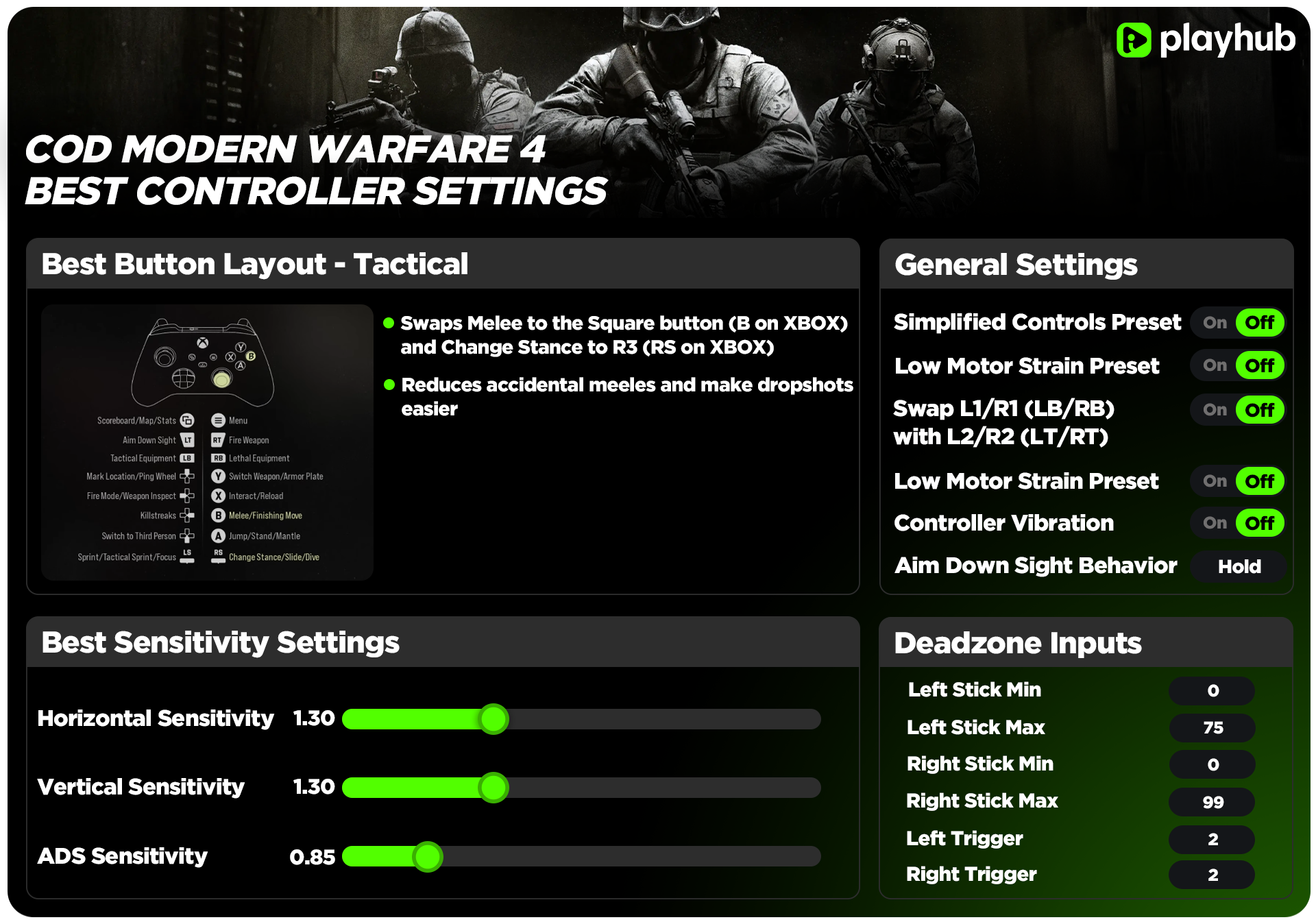
Controller is still one of the most preferred way to play Call of Duty game and tweaking a couple setting can make a big difference.
-
The Tactical button layout is the best pick for most players, since it moves Melee to Square/B and Change Stance to R3/RS, making dropshots easier and stopping those accidental panic melees.
-
A sensitivity of around 1.0 to 1.6 works well for most players, with 1.3 being a good middle ground, plus a slightly lower ADS Sensitivity Multiplier of 0.8 to 0.9 for better control on target.
-
Make sure ADS Sensitivity Transition Timing is set to Instant instead of Gradual, and turn Corner Slice off so you don’t expose your whole body when peeking.
-
Set Interact/Reload Behavior to Tap to Reload for multiplayer, but switch it to Prioritize Interact for DMZ since that mode is all about looting.
Got your controller settings dialed in and ready to jump into the game? Check out Call of Duty Modern Warfare 4 accounts for sale on PlayHub, with high ranks, unlocked weapons, and rare cosmetics ready to put those new settings to the test!
Call of Duty Modern Warfare 4 Best Controller Settings
Like it or not, but most Call of Duty players experience the game with a controller, as the core player base is on PS5 and XBOX consoles. But even on PC, many players still prefer the controller. With each new game every year, devs move settings around, and on top of that, Modern Warfare 4 takes a big leap in gameplay and graphics compared to previous titles. The game just feels different, and with the right controller settings, you can enjoy MW4 even more and improve your gameplay. This is what we’re gonna take a look at today with this complete Modern Warfare 4 Controller Settings guide.
Call of Duty Modern Warfare 4 Controller Step-by-Step Settings
Before we go into full detail, keep in mind that settings are always up to your preferences, so feel free to adjust and test them before diving into MW4! Now let’s get started.
Controller Settings
-
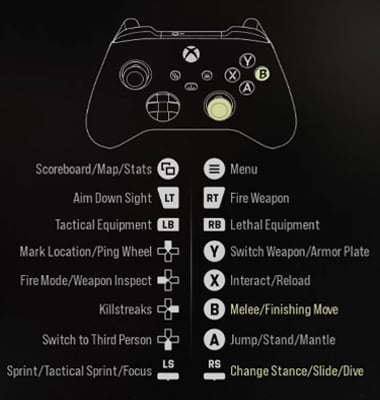
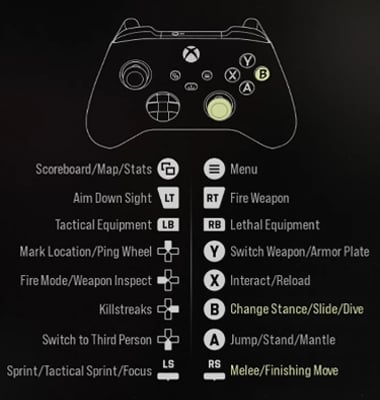
Button Layout - this setting changes how your controller's physical buttons map to in-game actions like shooting, jumping, crouching, melee attacks, etc. In Modern Warfare 4, most players prefer the Tactical preset for more efficient dropshots and crouching control because it swaps Melee to the Square button (B on XBOX) and Change Stance to R3 (RS on XBOX). Also, another thing is that many players tend to press the stick when they panic and accidentally melee, and with the Tactical preset you can avoid it by just crouching or sliding instead, which makes me recommend the Tactical layout as the best one. For left-handed players, there’s a Lefty layout, as usual, but out of all, here’s my top 3 button layouts for controller:
|
Layout Preset |
Controller Layout |
|---|---|
|
Tactical |
 |
|
Default |
 |
-
Horizontal Sensitivity - this is one of the settings that really comes down to personal preference, and it’s hard to recommend a specific number. I think the average CoD player would prefer something around 1.0 - 1.6, with my personal favourite sensitivity being in the middle at 1.3. But once again, it’s totally up to you. I think these numbers offer the best balance in terms of precision and speed.
-
Vertical Sensitivity - same story as the Horizontal Sensitivity setting. It comes down to personal preference, so make sure to adjust and test it yourself, but I would recommend 1.3 as the best balance. It’s also possible if you would prefer Horizontal and Vertical settings to be two different numbers, and it’s totally okay!
-
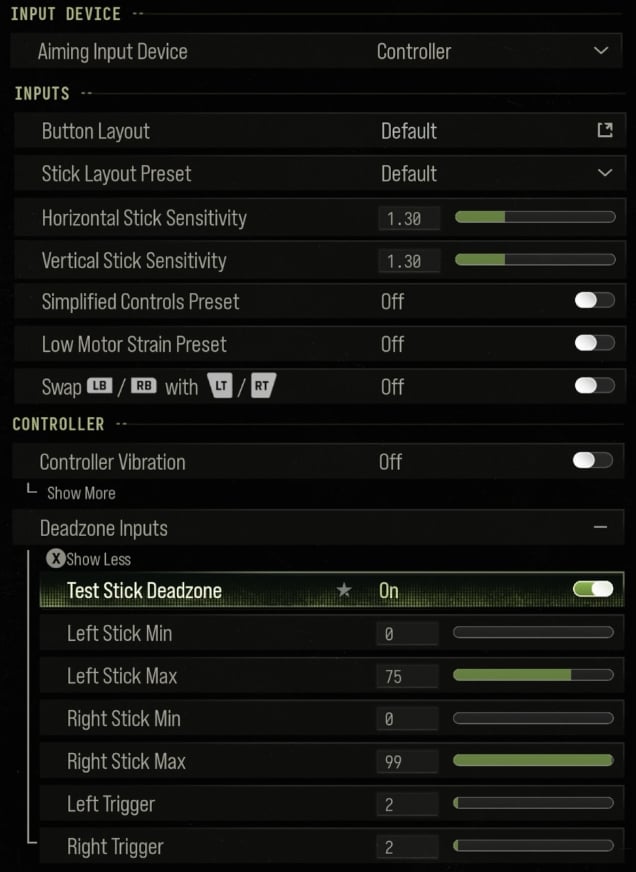
Simplified Controls Preset - Off. It’s an accessibility feature designed to reduce complex physical or cognitive inputs by streamlining movement, weapon handling, or button interactions.
-
Low Motor Strain Preset - Off. It is an accessibility feature as well, designed to reduce the physical effort and hand fatigue required to play. If you need any of these two, feel free to turn them on. But for a regular player, these would make the game feel unusual.
-
Swap L1/R1 (LB/RB) with L2/R2 (LT/RT) - Up to your preference, but I leave it Off by default.
-
Controller Vibration - I recommend turning it off, but it’s totally up to you. For me, vibration can distract, especially if things get competitive in multiplayer, but if you don’t mind it or want to experience PS5’s DualSense haptic feedback, then feel free to turn it on.
-
Deadzone Inputs - This is where many players struggle, especially those with stick drift. Basically, you need to make sure that your character or camera doesn't move or pan on its own. Realistically min value needs to be somewhere around 0-5 if your controller is in an okay state. This is the case for both left and right stick. For the max value, I recommend setting the left stick to something around 75-85 to make sure your camera doesn’t go flying in random directions, and for the right stick, I think it should go higher to something around 95-100 because you will need full control of your movement. The trigger deadzone is not that big of a deal, so I leave it on the default value, but it’s up to you. What’s so good about Deadzone Input is that you can test it out right in the settings screen. Devs made sure to include testing tools, which is always good.
Aiming Settings
-
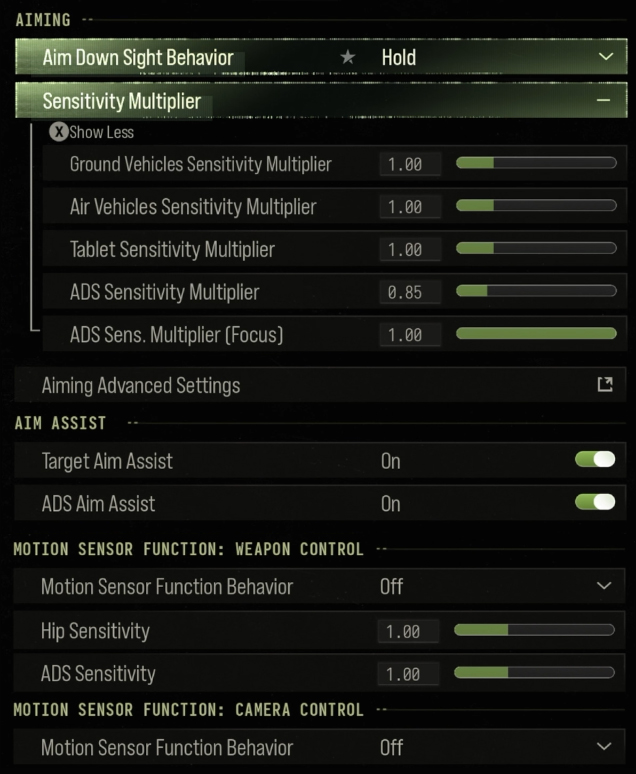
Aim Down Sight Behavior - I recommend leaving the default Hold here because it provides faster reaction times and split-second control in close-range gunfights, as you just need to press the Aim Down Sights (ADS) button (L2/LT). When it's set to Toggle, you need to press the ADS button once to aim down sights and must press it again to exit.
-
Sensitivity Multiplier - Expand this setting to see all values. When it comes to Sensitivity Multiplier I recommend leaving most of them on 1.0 by default and reducing ADS Sensitivity Multiplier just a little bit to 0.8-0.9 for more slowdown on a target. This way, you will have more accurate aim (some players call it sticky aim) on enemies. Here are my recommended Sensitivity Multiplier settings:
|
Ground Vehicle Sensitivity Multiplier |
1.00 |
|---|---|
|
Air Vehicle Sensitivity Multiplier |
1.00 |
|
Tablet Sensitivity Multiplier |
1.00 |
|
ADS Sensitivity Multiplier |
0.85 |
|
ADS Sensitivity Multiplier (Focus) |
1.00 |
-
Aiming Advanced Settings - Click it to view more, and then you will see some important settings that can improve your gameplay significantly, first of which is ADS Sensitivity Transition Timing. Some players reported on Reddit that their default setting was Gradual, and if this is still the case, then you need to change it to Instant ASAP. Instant was always the default option in CoD games, and for whatever reason they could have changed it. With Instant, the sensitivity multiplier will be applied immediately rather than over time with Gradual. It just feels better with Instant. Another important setting is Aim Response Curve Time, which I recommend setting to Dynamic for fast turning and precise micro-adjustments, though Standard is a reliable alternative. Here are my recommended Aiming Advanced Settings:
|
ADS Sensitivity Transition Timing |
Instant |
|---|---|
|
Aim Response Curve Time |
Dynamic |
|
Aim Response Curve Slope Scale |
1.00 |
|
Custom Sensitivity Per Zoom |
Off |
-
Target Aim Assist - On. This setting is only available in campaign, but I recommend leaving it on by default.
-
ADS Aim Assist - Same as Target Aim Assist setting, ADS Aim Assist is only available in campaign, so I recommend leaving it on.
-
Motion Sensor Function Behavior - This setting enables or disables gyro motion controls, allowing you to tilt or move your physical controller (on supported platforms like PS5 or Switch 2) to fine-tune your aim. Personally, I leave it off by default, but it’s up to your preference if you like it.
Movement Settings
-
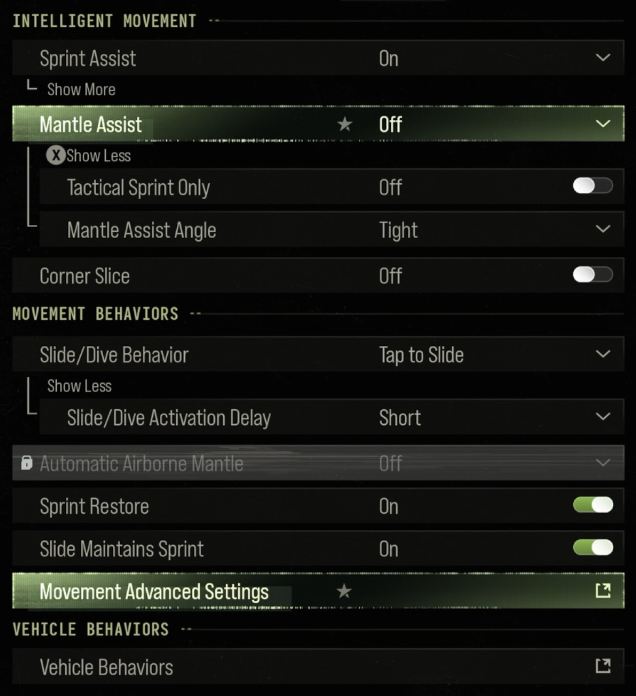
Sprint Assist - On. In previous CoD titles, Tactical Sprint Assist was the most preferred option, but in MW4, even when you switch to it, you’ll get the warning that it will make your ADS transition time longer, which isn’t good. I recommend setting it to On in Modern Warfare 4 for the best balance.
-
Mantle Assist - I recommend turning it to Off, so you have better control of your character. Basically, this setting controls how your character climbs or vaults over obstacles when you sprint toward them, and when you have it Off it prevents unwanted climbing during gunfights or tight movement sequences.
-
Corner Slice - This setting dynamically tilts your weapon and character view when you approach and round corners or doorways, but the thing is that in multiplayer, when you do that, the opponents see your full character instead of just you peeking around the corner. This can give a significant competitive disadvantage, so I recommend turning Corner Slice off.
-
Slide/Dive Behavior - Tap to Slide is what I would recommend here for the best responsiveness.
-
Slide/Dive Activation Delay - Short to keep your movement more responsive, as this setting controls how long you need to hold the button to perform the slide/dive animation.
-
Sprint Restore - On because it automatically restores your sprint behavior. Even though turning Sprint Restore off can make it easier to exit a sprint cleanly into a stop or ADS (Aim Down Sights), some players report mixed results or prefer leaving it enabled.
-
Slide Maintains Speed - On. It will keep your momentum going after a slide rather than dropping you back down to a normal jog.
-
Movement Advanced Setting - Click to open and look for Tactical Sprint Activation. Switch it to Single Tap Sprint because we have Sprint Assist on, and with just a single tap you will activate tactical sprint. Other than that, I recommend leaving the rest of the settings on default value here:
|
Sprint/Tactical Sprint Behavior |
Toggle |
|---|---|
|
Auto Move Forward |
Off |
|
Grounded Mantle |
Off |
|
Tactical Sprint Activation |
Single Tap Sprint |
|
Plunging Underwater |
Trigger |
|
Slide/Combat Roll Behavior |
Tap to Slide |
Combat Settings
-
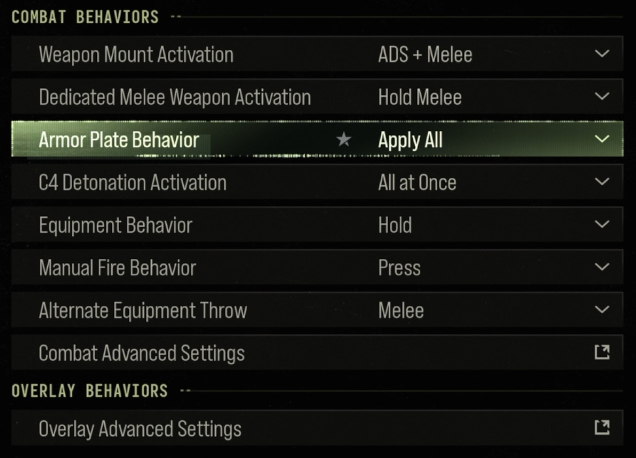
Weapon Mount Activation - Controls the specific button combination required to mount your weapon onto a ledge or wall. I recommend leaving it on ADS + Melee by default.
-
Dedicated Melee Weapon Activation - Controls the button mechanic required to draw your dedicated combat knife or secondary melee weapon. Leave it on the default Hold Melee option as well.
-
Armor Plate Behavior - Set it to Apply All, and if you wanna cancel the animation, just hit the melee button and it will stop. It just feels better and faster this way.
-
C4 Detonation Activation - This setting controls whether double-tapping detonates all deployed C4 charges simultaneously (All at Once) or detonates them individually (One by One). I recommend leaving it on All at Once.
-
Equipment Behavior - Sets whether lethal/tactical equipment is thrown instantly upon button press (Toggle) or held to aim the trajectory before release (Hold). I recommend choosing the Hold option here.
-
Manual Fire Behavior - Determines how semi-automatic or burst weapons respond when you hold down the trigger, letting you fire continuously (Hold) or forcing single clicks (Press). I recommend the Press option here.
-
Alternate Equipment Throw - Allows you to toggle your grenade trajectory to a short-distance underhand lob by pressing a secondary button while preparing a throw. I recommend the Melee option here.
-
Combat Advanced Settings - Click this setting to open and look for Interact/Reload behavior. This one is important because it sets the priority for loading ammo and interacting with doors, loot crates, or objectives. If you prefer playing multiplayer, I recommend setting it to Tap to Reload because you need to prioritize reloading, and there isn't much to interact with during combat anyway. But for DMZ, I highly recommend setting it to Prioritize Interact because of how loot-oriented this game mode is. Other than that, all settings are straightforward, not much to change here:
|
Focus Behavior |
Hold |
|---|---|
|
Change Zoom Activation |
Sprint/Tactical Sprint/Focus |
|
Interact/Reload Behavior |
Tap to Reload for multiplayer, Prioritize Interact for DMZ |
|
Mantle Cancel Reload |
On |
|
Akimbo Behavior |
Indenpendent |
|
ADS Stick Swap |
Off |
|
Tac-Sprint Cancels Reload |
On |
|
Depleted Ammo Weapon Switch |
On |
These are all the settings I wanted to share with you. Once again, these are just my recommendations of the best controller settings in Modern Warfare 4, and many depend on your preferences. Adjust and test them out to get your perfect controls. Thanks for checking out this guide, and I hope to see you again on my blog!
Also check out other Modern Warfare 4 guides: